Cronus Zen Guide

Setup

Connect the Zen to your console

Every setup follows the same shape: update firmware, put the right cables in the right ports, get the console to accept the Zen as a controller, then load a slot. The platform-specific details are where people get stuck.

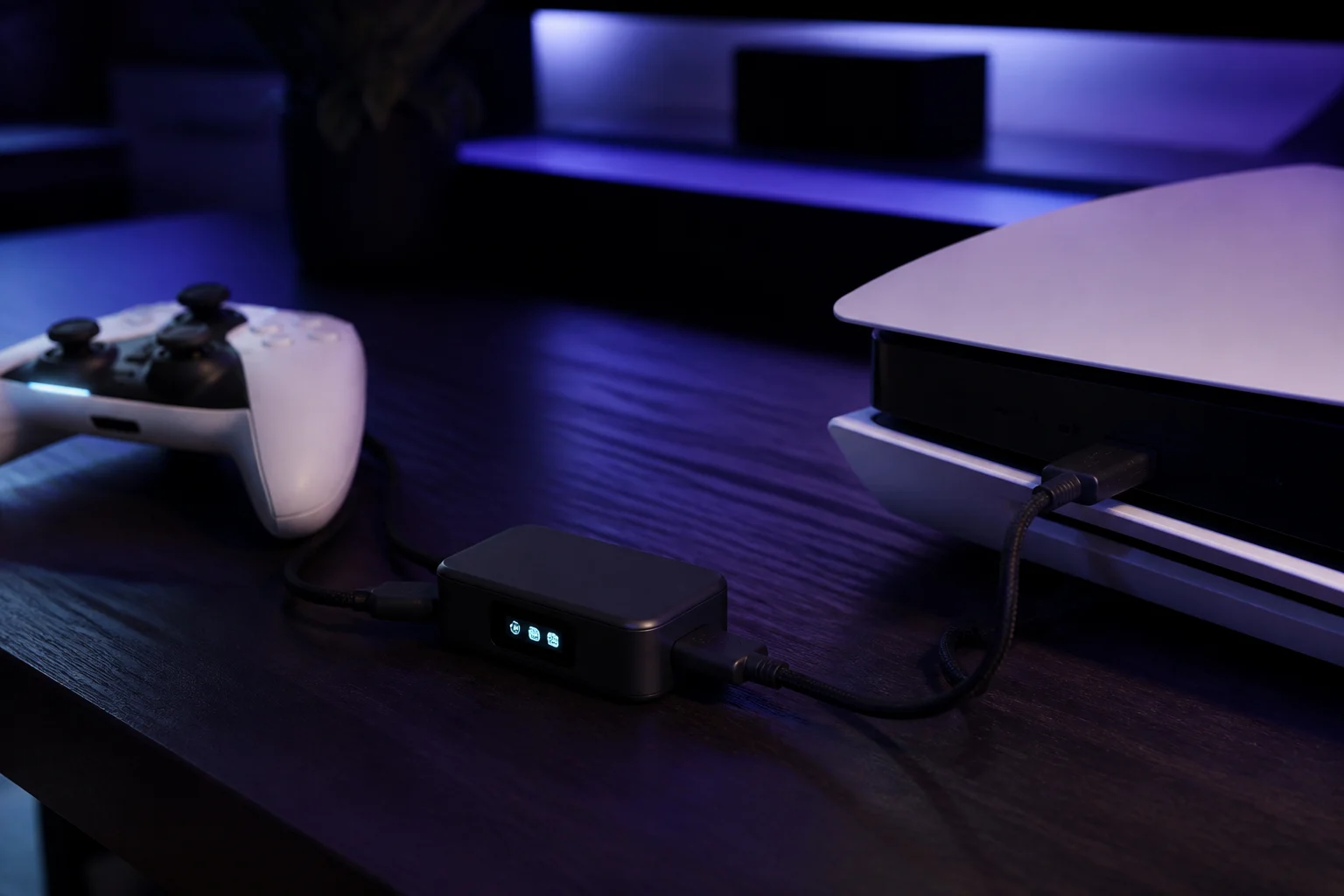
Cronus Zen connected between a controller and a console

By platform

PlatformConnectionNeedsGuide
PlayStation 5Zen LINK Wi-Fi module in PS5 Native Mode. Direct USB stopped working after Sony's firmware changes.Zen LINK ($29.99), 2.4 GHz Wi-FiOpen →
Xbox Series X|S, Xbox OneUSB from the CONSOLE port. An official Xbox controller in A1 answers the console's security handshake. Wireless via the Xbox Wireless Adapter.Official Xbox controllerOpen →
Windows PCUSB from the CONSOLE port. The Zen presents itself as an Xbox controller and works with Steam and most XInput games. Unplug PROG while playing.NoneOpen →
Nintendo SwitchUSB into the dock. Enable Pro Controller Wired Communication in System Settings first.NoneOpen →
PlayStation 4USB from the CONSOLE port. PS4 Pro requires the rear USB port.NoneOpen →

Before you plug anything in

  1. 1Update firmware before anything elseOpen Zen Studio Live in Chrome or Edge, connect the PROG port to the PC, and flash the current firmware. Old firmware is behind most first-day faults.
  2. 2Learn which port does whatPROG is for the PC that runs Zen Studio. CONSOLE goes to what you play on. A1 is the Xbox authentication port. They are not interchangeable.
  3. 3Pick a controller that is on the listWired official controllers are the safe default. Bluetooth works for DualShock 4, DualSense, Pro Controller and Joy-Con, with trade-offs.
  4. 4Use a data cable, and enough powerCharge-only USB-C cables light the OLED but leave the Zen invisible to the PC. Three front-port devices can exceed the console's USB budget.
  5. 5Load your first GamePack into a slotProgram a slot in Zen Studio, unplug PROG, step to the slot with P1/P2, and confirm the OLED shows it.

All setup guides