Cronus Zen troubleshooting: the 15 most common problems and fixes
Fifteen Cronus Zen problems ranked by how often they come up, each with the official fix: not detected, E3001, E3002, bytecode errors, DFU failed, PS5 not connecting, no headset audio and more.
- Updated
Quick answer
Most Cronus Zen faults trace back to five causes: a charge-only cable, the wrong USB port, too little power, a firmware mismatch, or a platform-side change such as Sony's PS5 updates. Below are the fifteen problems owners report most, each with the fix Collective Minds publishes, ordered roughly from most to least common.
How should I use this list?
Each entry names the symptom as you will see it, the cause the official documentation gives, and the fix. If your problem is not here, the troubleshooting hub has a symptom table with more links.
1. Zen Studio says "No Devices Found"
Cause: the cable does not carry data, the Zen is plugged into the wrong port for the task, or the USB port is under-powered. On Windows, missing Legacy drivers. Fix: use a braided cable from the box. For programming use PROG; for firmware use the top port in bootloader mode. Try a rear motherboard port or a powered hub. On Legacy, reinstall from the official downloads page to restore drivers. Full detail: Zen not detected.
2. E3002 on the OLED, or the Zen freezes mid-game
Cause: a runtime crash. The official page lists faulty scripts, unsupported devices, a bad cable or the wrong port. Fix: unplug every cable for ten seconds and reconnect. If it recurs, remove the last script you added, and hard reset if needed.
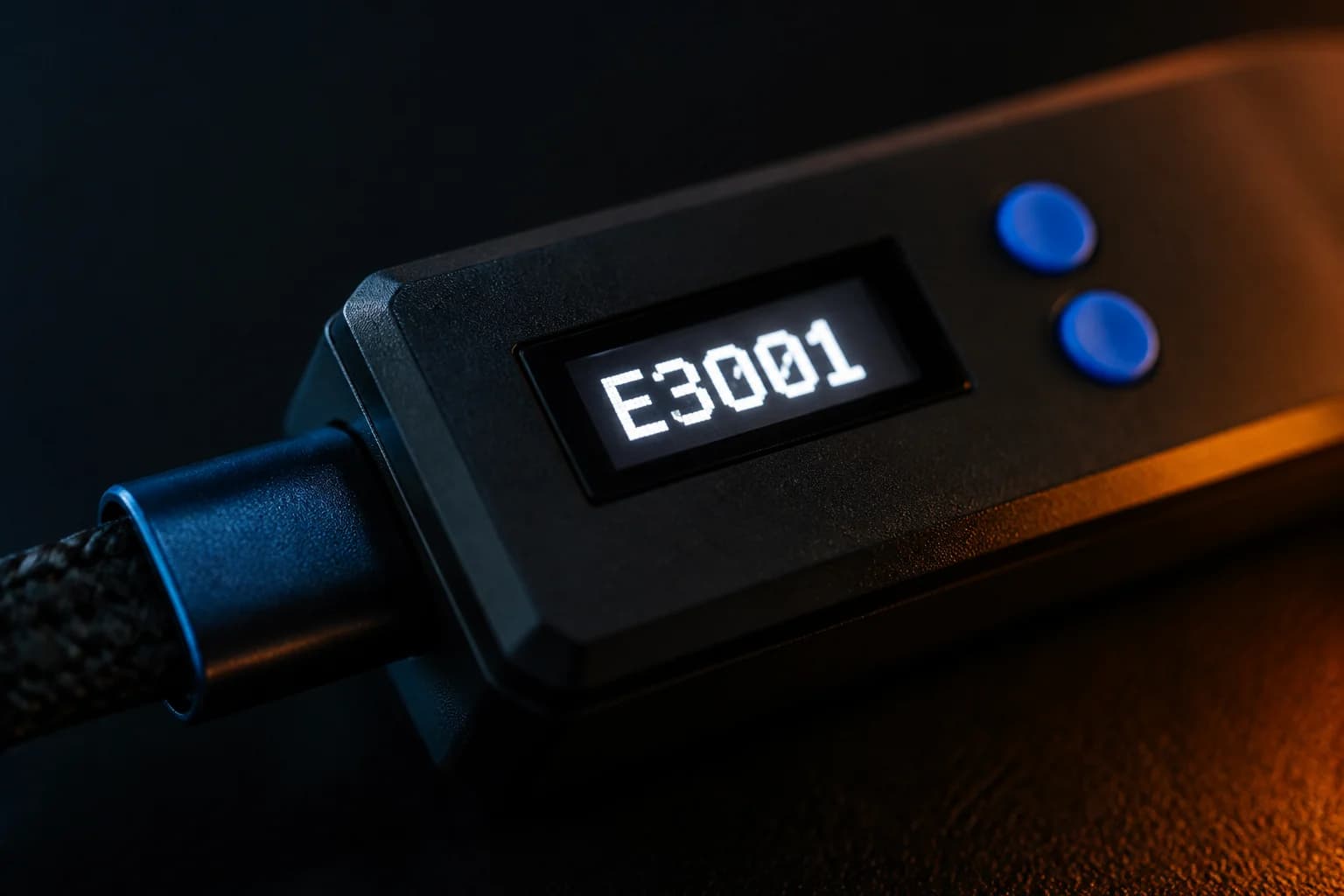
3. E3001 on the OLED
Cause: firmware missing or corrupt, typically after an interrupted flash. Fix: enter bootloader mode (blue button held while plugging the top port) and reflash. See how to update firmware.
4. "Stack overflow" or "Bytecode underflow/overflow"
Cause: a slot holds a script compiled for a different firmware line. Fix: the official sequence is hard reset, flash current firmware with the matching Zen Studio, load a GamePack to slot 1 and test. Then recompile your own scripts.
5. Firmware shows 0.0.0 or "DFU Download Failed"
Cause: the flash was interrupted, or the cable and port cannot sustain the transfer. Fix: retry from bootloader mode on a powered USB port with a different cable. If it fails repeatedly, warranty.
6. "Firmware Version Incompatible"
Cause: Zen Studio and the device disagree on firmware version. Fix: update Zen Studio Legacy to 1.6.1 Build 82 and reflash, or use Zen Studio Live, which always matches current firmware.
7. PS5 does not respond at all
Cause: the direct USB path no longer works after Sony's 2024 and 2026 firmware updates. Fix: use Zen LINK and set the PS5's Communication Method to Use USB Cable. Full history and steps in the PS5 setup guide.
8. Zen LINK LED is red, or PS5 keeps dropping
Cause: network. Wrong band, special characters in the Wi-Fi password, phone on a different network, or blocked Remote Play ports on V1. Fix: everything on the same 2.4 GHz network, simplify the password, enable UPnP or forward TCP 9295/9304/8572 and UDP 9000–65535, and consider static IPs. Quick red blips clear in ten seconds; long red blinks need a power cycle.
9. "Failed to retrieve GamePacks" or Network Error
Cause: an ISP or firewall blocking Cloudflare DNS. Fix: the official guide suggests disabling the firewall temporarily or using a VPN.
10. Xbox controller not recognised or disconnecting
Cause: no official Xbox controller in A1, or the console needs a reset. Fix: put an authenticating Xbox pad in A1, then follow the official connection fix: hold the console power button ten seconds, unplug for a minute, reboot, and reconnect the Zen before the controller.
11. Controllers disconnect randomly or the Zen reboots
Cause: insufficient USB power, especially from a Switch in handheld mode, a laptop, or an unpowered hub. Fix: a powered USB hub between the Zen and the host. Collective Minds recommends its own MK Switch hub, but any powered hub works.
12. No headset audio on PS5
Cause: a 3.5 mm headset in a Bluetooth-paired DualSense is unsupported. Fix: wire the DualSense to A2 or A3, then set PS5 Settings → Sound → Microphone → Input Device to USB Headset.
13. Scripts misbehave on a DualSense Edge
Cause: custom right-stick sensitivity or deadzone in the Edge profile. Fix: create a custom profile with default stick values, as the official Zen LINK guide instructs.
14. "USB Device Not Recognized" in Windows
Cause: an under-powered port or a driver problem. Fix: switch ports, use a powered hub, and check Windows USB drivers. Reinstall Zen Studio Legacy if its driver is the issue.
15. The OLED is completely blank
Cause: the official page calls a blank OLED a defective unit once cable and port are ruled out. Fix: try a known-good cable on the top port; if it stays dark, open a warranty ticket at the helpdesk. Where to go is covered in finding official help.
Why are cables and power behind so many of these?
The Zen draws its power from the top port and then has to power whatever is plugged into its front ports: a DualSense charging its battery, an Xbox Wireless Adapter, a mouse with RGB lighting. A console USB port or a laptop can supply a fixed amount of current; exceed it and the Zen browns out. The symptoms look like software (reboots, disconnects, a controller that "forgets" it is paired) but the cause is electrical. A powered hub gives the Zen its own supply and is the cheapest fix on this list.
Cables fail the other way. Many USB-C cables sold for charging omit the data lines entirely, and there is no external way to tell. If a cable did not come with the Zen, assume nothing until you have tested it on a device you know shows up in Zen Studio.
What order should I try things in?
- Swap to a cable from the box and the correct port.
- Unplug everything for ten seconds.
- Try a powered hub or a different USB port.
- Update firmware from bootloader mode.
- Erase the suspect slot or factory reset.
- Open a helpdesk ticket with the exact OLED message and what you have tried.
When is it time to stop and contact support?
When the OLED stays blank, when three clean flash attempts fail, or when the same error persists after a factory reset. The base warranty is 90 days, extended to a year with bundles, and the official guide offers a paid extended service for out-of-warranty units.
Frequently asked questions
What is the single most useful first step?
How do I tell a hardware fault from a software one?
Should I open the Zen to fix it?
Where is the official troubleshooting page?
Sources
Every link was live when this guide was last updated.
This guide is independent and unofficial; product names belong to their owners. Found an error? Use the contact page and we will correct it and note the change.