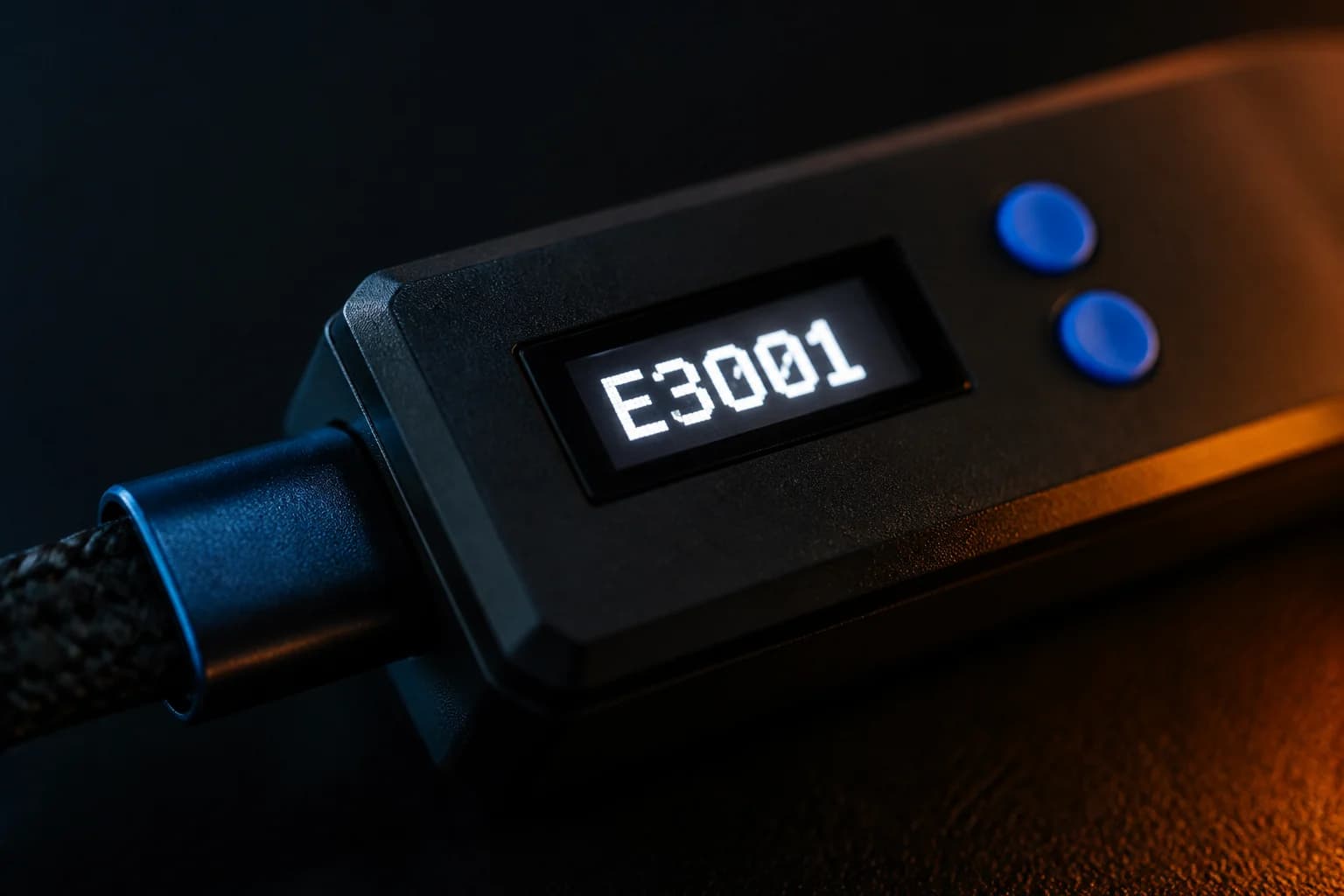
Zen LINK V1 vs V2: how to tell them apart and what the one-time V1 upgrade does
The differences between the original Zen LINK Wi-Fi module and the V2: label check, the ZenLinkConfigurator one-time upgrade that gives a V1 the same functionality as a V2, the unified firmware, the smartphone app setup, and the PS5 settings both need.
- Updated
Quick answer
Check the label underneath the module: a V2 says "V2", the original does not. Functionally the difference has been erased. Collective Minds provides a one-time upgrade for the original Zen LINK through the ZenLinkConfigurator, after which it matches a V2, including PS5 Native Mode and over-the-air updates. Both then use the same smartphone app and PS5 settings.
What is the Zen LINK, briefly?
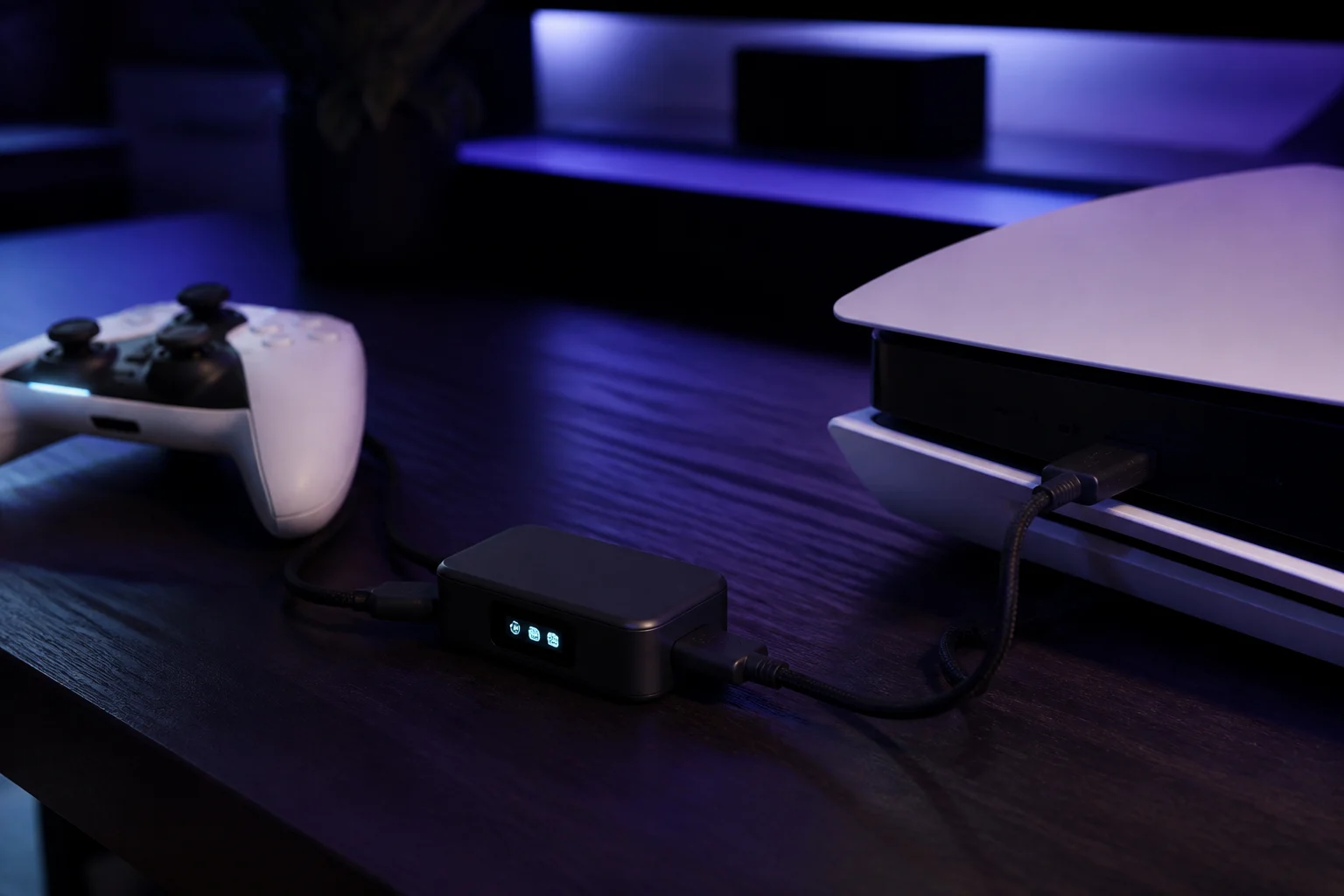
A $29.99 Wi-Fi expansion module that plugs into a front port of the Cronus Zen. It does two things: it lets you install and configure GamePacks from a smartphone with no PC, and it provides PS5 Native Mode, the official way to use a Zen on PS5 since Sony's firmware changes blocked the direct USB path. Collective Minds describes the native connection as ultra-low latency and compatible with all PS5 titles. Background on why PS5 needs it is in PS5 setup.
Two hardware revisions exist, and owners of the first are often unsure whether they are missing out. They are not, once the upgrade below has been done.
How do I tell which one I have?
Turn the module over. The label underneath states the model. On a V2 the label says V2. On the original, V2 is not mentioned anywhere. That is the only reliable check; the modules look alike from the top.
The official model-check page is emphatic that you verify this before setup, because the original needs one extra step first.
What was different about V1 and V2?
The V2 shipped with newer firmware and the current setup flow built in: automatic over-the-air updates, Bluetooth LE setup from the smartphone app, and PS5 Native Mode out of the box. The original launched earlier, in the era when PS5 support meant PS Remote Play through a configuring PC, and it used a Windows tool called ZenLinkConfigurator with a blue Config button on the module for setup.
Since Zen firmware 2.3.2 (August 2026) supports a unified Zen LINK V1/V2 firmware, and Zen LINK firmware 2.1.4 (20 August 2026) is that unified build, the two revisions run the same software. What remains is a one-time bridging step for the original.
The one-time V1 upgrade
From the official updating page, for V1 only:
- Enter Config Mode. Plug the Zen LINK V1 in while holding its blue Config button.
- Run the updater. Open the ZenLinkConfigurator, enter your Wi-Fi credentials and select Native Mode.
- Wait. Once the module connects to Wi-Fi the update starts shortly after.
After this, the guide says, your V1 "has the same functionality as a V2 and updates automatically from then on." The ZenLinkConfigurator is then only needed again if you ever factory reset a V1, which the guide describes as a last resort for an unrecoverable unit.
How do updates work afterwards?
Over Wi-Fi, with no cable, PC or app interaction. Plug the module in so it powers up; about 30 seconds after connecting to your network the update starts automatically. If the stored Wi-Fi credentials are invalid, the module starts BLE setup instead of updating, so fix the Wi-Fi in the app and let it reconnect.
Setup, which is now the same for both
Part 1: the smartphone app
- Plug the Zen LINK into the Zen's A1 port (left side). Collective Minds recommends A1 because that is where it resides for native PS5 play.
- The module's LED turns blue once connected.
- Install the Cronus ZenLink app from the iOS App Store or Google Play.
- Turn on the phone's Bluetooth and join the same Wi-Fi network as the module will use. The network must be 2.4 GHz.
- The app finds the module over Bluetooth and shows the main ZenLink screen.
From here you can flash and configure GamePacks from the phone, or continue to PS5.
Part 2: PS5 console settings
The official setup page lists these, and the communication method is the one that breaks everything if missed:
- Power Saving: do not enter rest mode while playing; supply power to USB ports always; stay connected to the internet; enable turning on from network.
- Accessories → Controller (General): vibration and trigger effect intensity Strong (Standard); Communication Method → Use USB Cable.
- Bluetooth → Off. Native Mode requires it. This is why headsets in the controller jack stop working; see headsets and chat audio.
- DualSense Edge: create a custom profile with the right stick sensitivity curve set to Default, curve adjustment 0 and deadzone 0%, or many MODs misbehave.
What the LED tells you
Blue during setup, magenta when Native Mode starts, green on success, quick red blips for a retryable failure and long red blinks when it has stopped. A dark LED means no power. The full table is in OLED messages and Zen LINK LED meanings.
Should a new buyer care about the revision?
Buy whatever is current; it will be a V2. If you are offered a second-hand original at a discount, it is a fine purchase provided you are willing to run the one-time upgrade on a Windows PC. After that the two are interchangeable in daily use.
Frequently asked questions
Do I need to buy a V2 if I have the original?
How do I run the one-time V1 upgrade?
Where do I plug the module in?
Does the Zen LINK need 5 GHz Wi-Fi?
Sources
Every link was live when this guide was last updated.
- 01Zen LINK model check (official guide)guide.cronuszen.com
- 02Zen LINK updating and one-time V1 upgrade (official guide)guide.cronuszen.com
- 03Zen LINK setup (official guide)guide.cronuszen.com
- 04What is Zen LINK (official guide)guide.cronuszen.com
- 05Changelog 2026, firmware 2.3.2 and Zen LINK 2.1.4 (official guide)guide.cronuszen.com
This guide is independent and unofficial; product names belong to their owners. Found an error? Use the contact page and we will correct it and note the change.