Cronus Zen setup on PS5 in 2026: Zen LINK, step by step
How to set up a Cronus Zen on PS5 today: why direct USB stopped working, what Zen LINK does, the exact console settings, and the wired vs wireless caveats.
- Updated
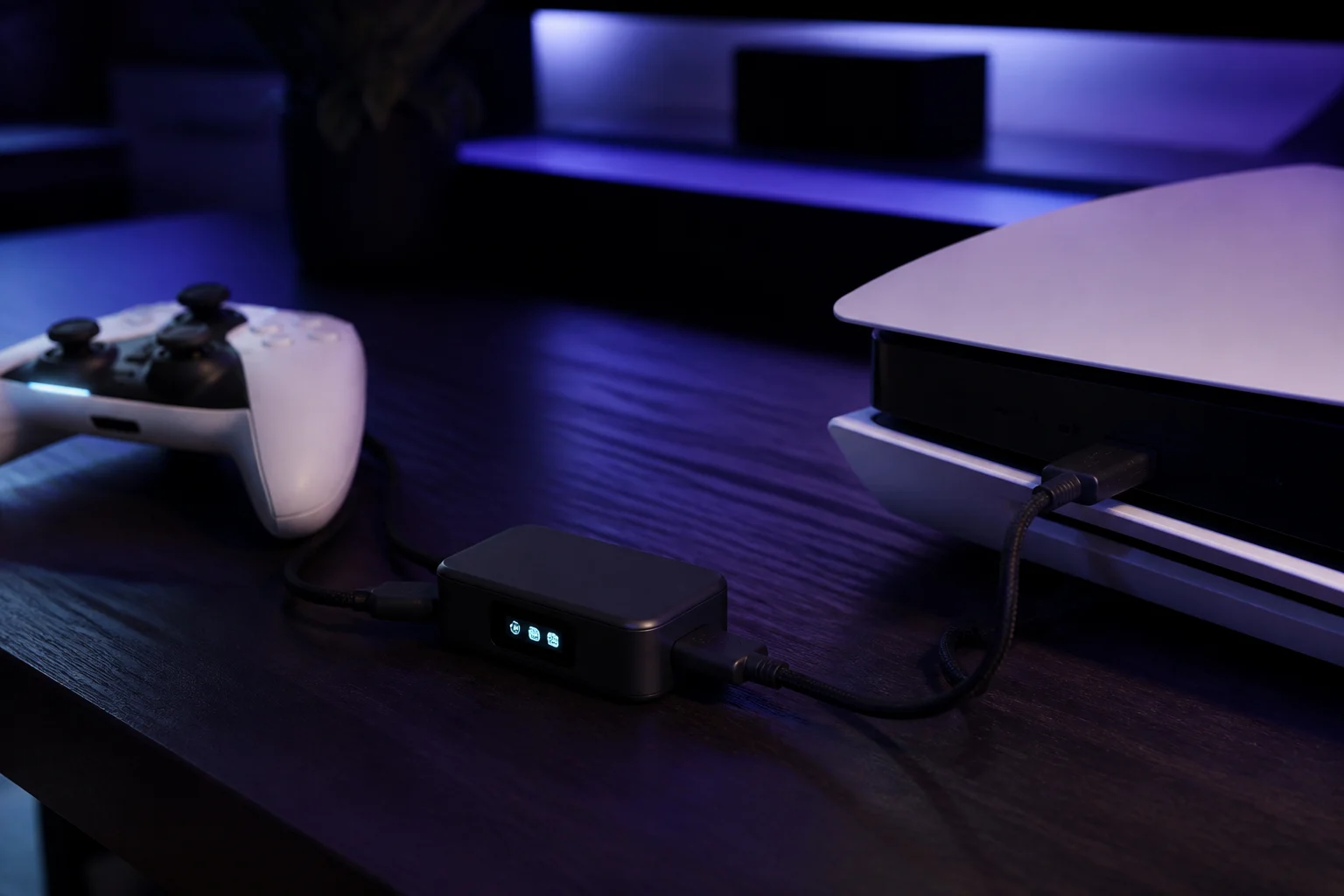
Quick answer
A Cronus Zen no longer works on PS5 by plugging it straight into the console; Sony firmware updates in January 2024 and July 2026 blocked that path. The supported method is the $29.99 Zen LINK module: plug it into the Zen, configure it with the ZenLink phone app or Remote Play, set the PS5 to "Use USB Cable", and play.
Why did the old PS5 method stop working?
For its first few years the Zen connected to a PS5 the same way it connects to every other console: the top port went to the console, and an official controller in port A1 authenticated the device. Then Sony changed the rules.
- January 2024, firmware 24.01-08.60.00. Sony's update altered how the console authenticates controllers, and the Zen's USB handshake stopped working. PlayStation Universe and other outlets reported the break within days.
- July 2026. Eurogamer, summarised by Arcader, reported that another PS5 firmware update quietly blocked the Zen again after community workarounds had restored partial function.
Sony has never issued a public statement naming the Zen. The effect, however, is clear: the direct USB path is not something you can rely on, and Collective Minds' documentation now treats Zen LINK as the PS5 method.
What is Zen LINK and why is it required?
Zen LINK is a $29.99 Wi-Fi expansion module that plugs into one of the Zen's front USB-A ports. It connects the Zen to your wireless network and provides the PS5 connection that USB no longer can. It also lets you install and configure GamePacks from a smartphone.
Two hardware revisions exist and they are set up differently:
| Zen LINK (original, V1) | Zen LINK V2 | |
|---|---|---|
| How it reaches the PS5 | PS Remote Play; needs an active PSN account and the Windows ZenLINK configurator | "PS5 Native Mode" configured from the Cronus ZenLink phone app (iOS and Android) |
| Network | 2.4 GHz Wi-Fi, same network as the PS5 | 2.4 GHz Wi-Fi, same network as the PS5 and phone |
| Port forwarding | May need UPnP or TCP 9295, 9304, 8572 and UDP 9000–65535 open | Not listed as a requirement |
| Identify it | No "V2" on the underside label | "V2" printed on the underside label |
The official model check page tells you to confirm which one you own before following any steps. V1 owners should update the module first.
What do I need before I start?
- A Cronus Zen with current firmware. If you have not updated yet, do that first: how to update Cronus Zen firmware.
- A Zen LINK module (either revision).
- A DualSense or DualSense Edge, plus a USB-C data cable.
- A 2.4 GHz Wi-Fi network. Many routers broadcast 2.4 GHz and 5 GHz under one name; the module only uses 2.4 GHz.
- For V2: a smartphone with Bluetooth on, connected to the same Wi-Fi.
- For V1: a Windows PC for the ZenLINK configurator and an active PSN account.
How do I set it up, step by step?
- Apply the PS5 console settings. In Settings → Accessories → Controllers, set Communication Method to Use USB Cable. The official guide calls this the critical setting; without it the PS5 cannot connect through the Zen at all. In Settings → System → Power Saving, keep the console from cutting USB power in rest mode if you plan to leave the Zen connected.
- Fix the DualSense Edge profile if you use one. On a DualSense Edge, create a custom profile and leave right-stick sensitivity and deadzone at default. The official guide warns that custom curves break many MODs.
- Connect the Zen to power. Plug the Zen's top CONSOLE port into the PS5 with a USB-C data cable. The PS5 is now powering the Zen even though it will not authenticate over this cable.
- Plug in the Zen LINK. Collective Minds recommends the A1 port for PS5 play. Wait for the module's LED to go solid blue, which indicates it is in setup mode and ready.
- Configure the module. For V2, open the Cronus ZenLink app, allow Bluetooth, and follow the prompts to join your Wi-Fi. For V1, run the ZenLINK configurator on Windows, sign in to PSN, and follow the Remote Play pairing steps in the official guide.
- Connect your controller. Wire the DualSense to A2 or A3 with the short USB-C cable, or pair over Bluetooth by pressing P2 on the Zen and holding PS + Create on the controller until the lightbar goes solid.
- Watch the status light. On V2, magenta indicates PS5 Native Mode is initialising and a final green means it succeeded. Quick red blips mean initialisation failed and clear after about ten seconds so you can retry.
- Load a slot and test. In Zen Studio Live, program a GamePack or script to slot 1, then confirm the PS5 responds to every button and both sticks before you touch any MOD settings.
Wired or wireless controller: which should I use?
| Wired DualSense (A2/A3) | Bluetooth DualSense | |
|---|---|---|
| Setup effort | Plug in | Pair once via P2 |
| 3.5 mm headset | Works | Not supported |
| Controller speaker and mic | Limited | Not supported |
| Battery | Charges from the Zen | Drains normally |
| Latency | Lowest | Slightly higher |
For a first setup, go wired. It removes a variable if something does not work, and it is the only way to keep a wired headset.
What no longer works, and what to ignore
- Plugging the Zen into the PS5 with an auth controller in A1. This is the pre-2024 method that still appears in old videos. It does not work on current PS5 firmware.
- The PS5 "bypass". The official guide documents a manual procedure (Bluetooth on, Gearhead mode, controller in A1, a D-pad direction held while reconnecting the cable) but labels it not recommended. Sony's 2026 update was reported to break it again.
- Third-party pass-through adapters. Devices such as the Besavior U5 let other adapters connect to a PS5. They are not Collective Minds products and are outside this guide; see the compare page for a factual summary.
- Blocking PS5 updates. Some communities suggest refusing system updates to preserve a workaround. This locks you out of online play and is not something we recommend.
What if it still does not connect?
Work through these in order, all taken from the official Zen LINK troubleshooting pages:
- Confirm Communication Method → Use USB Cable is set on the PS5.
- Confirm phone, PS5 and Zen LINK are on the same 2.4 GHz network; disable mobile data on the phone during setup.
- If the LED returns to solid blue, Wi-Fi failed: re-enter the password and remove special characters.
- For V1, enable UPnP or forward the Remote Play ports, and consider static IPs for the PS5 and the PC.
- If red long blinks appear, the module has stopped; power cycle by unplugging it and the Zen for ten seconds.
- Still stuck? Open a ticket at the Cronus helpdesk with the LED colour, blink speed and count.
Is using the Zen on PS5 against Sony's rules?
Sony has not published a Zen-specific policy, but the PlayStation Network Terms of Service prohibit unauthorised peripherals and cheating in general, and the firmware changes make Sony's position on the device clear in practice. Game publishers have their own rules; Activision and Epic actively detect the Zen. Read Is the Cronus Zen allowed? before using it in any competitive online title.
Frequently asked questions
Do I still need a second controller for authentication on PS5?
Which Zen LINK do I have, V1 or V2?
Does the PS5 bypass method still work?
Will my wired headset work?
Does Zen LINK add lag?
Sources
Every link was live when this guide was last updated.
- 01Zen LINK PS5 setup guide (official)guide.cronus.support
- 02Zen Link setup and PS5 console settings (official)guide.cronuszen.com
- 03PlayStation 5 supported devices (official)guide.cronuszen.com
- 04PS5 firmware update blocks Cronus Zen (PlayStation Universe)psu.com
- 05Sony quietly blocks Cronus Zen again, July 2026 (Arcader, citing Eurogamer)arcader.org
This guide is independent and unofficial; product names belong to their owners. Found an error? Use the contact page and we will correct it and note the change.
Related guides
SetupZen LINK V1 vs V2: how to tell them apart and what the one-time V1 upgrade does4 min readSetupCrossover controllers: using a DualSense on Xbox or an Xbox pad on PlayStation with the Cronus Zen4 min readSetupWhich controllers work with the Cronus Zen? The official compatibility list, explained4 min read