Cronus Zen on Nintendo Switch and PS4: what works and what doesn't
Cronus Zen support for the original Nintendo Switch and PlayStation 4, including the Pro Controller wired setting, dock power, PS4 Pro's rear port, DualShock 4 revisions and Switch 2 status.
- Updated
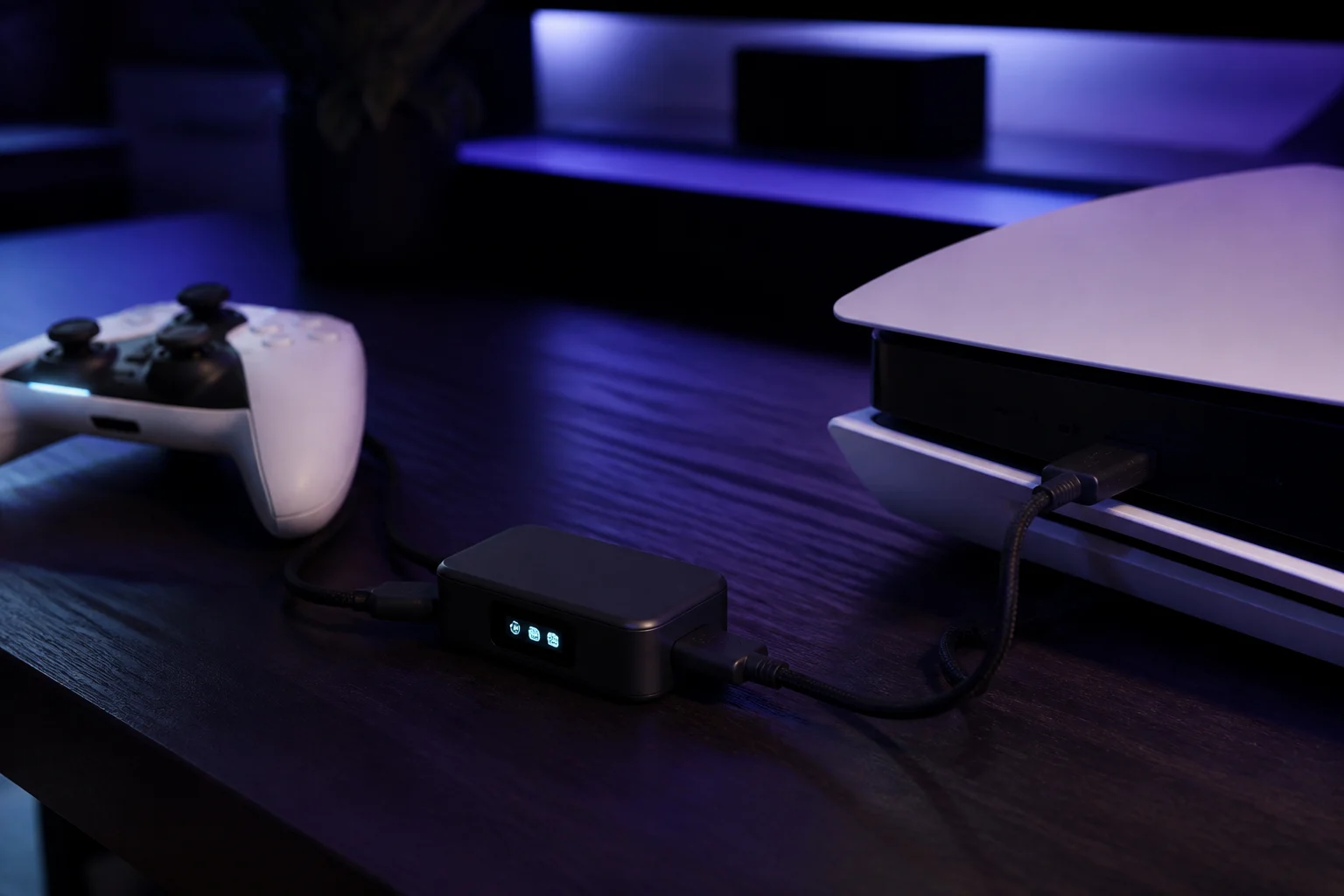
Quick answer
Both the original Nintendo Switch and the PlayStation 4 are fully supported. On Switch, enable Pro Controller Wired Communication and use the TV dock for power; no authentication controller is needed. On PS4, use the rear USB port on a PS4 Pro and prefer a second-revision DualShock 4. The Switch 2 is not supported.
Nintendo Switch: what has to be enabled first?
The Switch ignores wired controllers unless you tell it not to. Before connecting a Zen, go to System Settings → Controllers and Sensors → Pro Controller Wired Communication and turn it on. Without this the Zen boots, shows a slot on the OLED, and the console does nothing.
The second Switch-specific issue is power. The official guide is direct about it: run the Zen from the TV dock's USB port when possible. In handheld mode the console's single USB-C port cannot reliably power a Zen plus a controller, and the symptoms are random reboots and disconnects rather than a clear error.
Switch setup summary
- Enable Pro Controller Wired Communication on the console.
- Dock the Switch and connect the Zen's top CONSOLE port to a dock USB port.
- Set the output protocol to Switch in Zen Studio, or let auto-detect pick it.
- Plug any supported controller into A1. A Switch Pro Controller, DualSense, DualShock 4 or Xbox pad all work.
- Test in a game that uses every button, including Capture and Home, which can map differently across controllers.
Wireless on Switch
A Switch Pro Controller or a pair of Joy-Con can pair to the Zen over Bluetooth using the P2 button, as described in the official wireless guide. Joy-Con work as a single combined controller. Motion controls pass through for the Pro Controller when the game supports them.
Headset audio on Switch
The Switch handles audio through its own headphone jack or Bluetooth audio, not through controllers, so headset behaviour is unaffected by the Zen. Voice chat in Nintendo's ecosystem goes through the smartphone app.
Switch 2
The official support site says the Zen does not currently support the Nintendo Switch 2. If you own the newer console, there is no supported method at the time of writing. We will update this guide if that changes; the official changelog is the place to watch.
PlayStation 4: what are the hardware gotchas?
The PS4 was one of the Zen's original platforms and works without any of the PS5's complications. Two details matter.
PS4 Pro: use the rear USB port
The official PS4 page specifies the rear USB port on the PS4 Pro. The front ports have caused authentication and power issues with adapters. On a launch PS4 or Slim, either front port is fine.
DualShock 4 revisions
| DualShock 4 v1 (CUH-ZCT1) | DualShock 4 v2 (CUH-ZCT2) | |
|---|---|---|
| Identify | Lightbar not visible from the front | Lightbar strip visible above the touchpad |
| Wired data over USB | Limited; audio not carried | Full |
| Recommended for the Zen | No | Yes |
If you only have a v1 controller, the Zen still works, but headset audio through the controller and some authentication scenarios are restricted, according to the official compatibility notes. The Zen DS4 Back Button attachment, a $29.99 accessory adding four rear paddles, is designed for the DualShock 4 and pairs with the Zen over Bluetooth.
PS4 setup summary
- Update Zen firmware and load a slot in Zen Studio Live.
- Connect the Zen's top port to the PS4 (rear port on a Pro).
- Plug a DualShock 4 into A1. This is the matched, wired path and needs nothing else.
- For crossover, keep a DualShock 4 in A1 for authentication and add the other controller to A3.
- For Bluetooth, press P2 on the Zen and hold Share + PS on the DualShock 4 until the lightbar is solid.
PS Move and wheels
The official PS4 page covers pairing PlayStation Move controllers and the Legacy Zen Studio includes a Wheel Mode that presents a Logitech G25/G27 as a G29 with force feedback. These are niche features but they are documented and still work on PS4.
Which controllers work on each, and how well?
The official compatibility table is long, but the useful summary for these two consoles is short. On the Switch, every mainstream controller works through the Zen: Switch Pro Controller, Joy-Con (paired), DualSense, DualShock 4, Xbox Series and Xbox One pads. Motion controls pass through from Nintendo and Sony controllers when the game supports them. Amiibo scanning and HD rumble are not carried through third-party pads.
On the PS4, a DualShock 4 in A1 is the reference setup. DualSense controllers work as crossover devices in A3 but their adaptive triggers and haptics fall back to standard rumble. Xbox pads work in A3 with a DualShock 4 in A1 for authentication. The touchpad is emulated from a mapped button for controllers that lack one, which matters for games that use it for the map or scoreboard.
What about PS4 games on PS5?
Zen Studio Legacy's Device panel has a PS4 Speciality option that outputs a PS4 controller identity. Some owners use it for PS5 titles that accept PS4 controllers in backwards-compatibility mode. It does not restore general PS5 support; for that you need Zen LINK, as explained in the PS5 setup guide.
Quick comparison
| Switch | PS4 | |
|---|---|---|
| Auth controller needed | No | Yes for crossover (DualShock 4 in A1) |
| Power caveat | Use the dock | Rear port on PS4 Pro |
| Wireless pairing | Pro Controller, Joy-Con via P2 | DualShock 4 via P2 |
| Headset via controller | Not applicable | v2 DualShock 4 only |
| Newer console | Switch 2 not supported | PS5 requires Zen LINK |
Are there policy concerns?
Nintendo's and Sony's terms prohibit unauthorised devices in general language, and individual publishers set their own rules. Most Switch and PS4 titles have no active detection, but the same publisher policies that apply elsewhere apply here. See Is the Cronus Zen allowed?.
Frequently asked questions
Does the Cronus Zen work on the Nintendo Switch 2?
Do I need an auth controller on Switch?
Which DualShock 4 should I use on PS4?
Can I play PS5 games with the PS4 Speciality option?
Sources
Every link was live when this guide was last updated.
- 01Nintendo Switch supported devices (official guide)guide.cronuszen.com
- 02PlayStation 4 supported devices (official guide)guide.cronuszen.com
- 03Controller compatibility tables (official guide)guide.cronuszen.com
- 04Nintendo Switch 2 status (official guide)guide.cronus.support
- 05Wireless controller setup, non-PS5 (official guide)guide.cronuszen.com
This guide is independent and unofficial; product names belong to their owners. Found an error? Use the contact page and we will correct it and note the change.