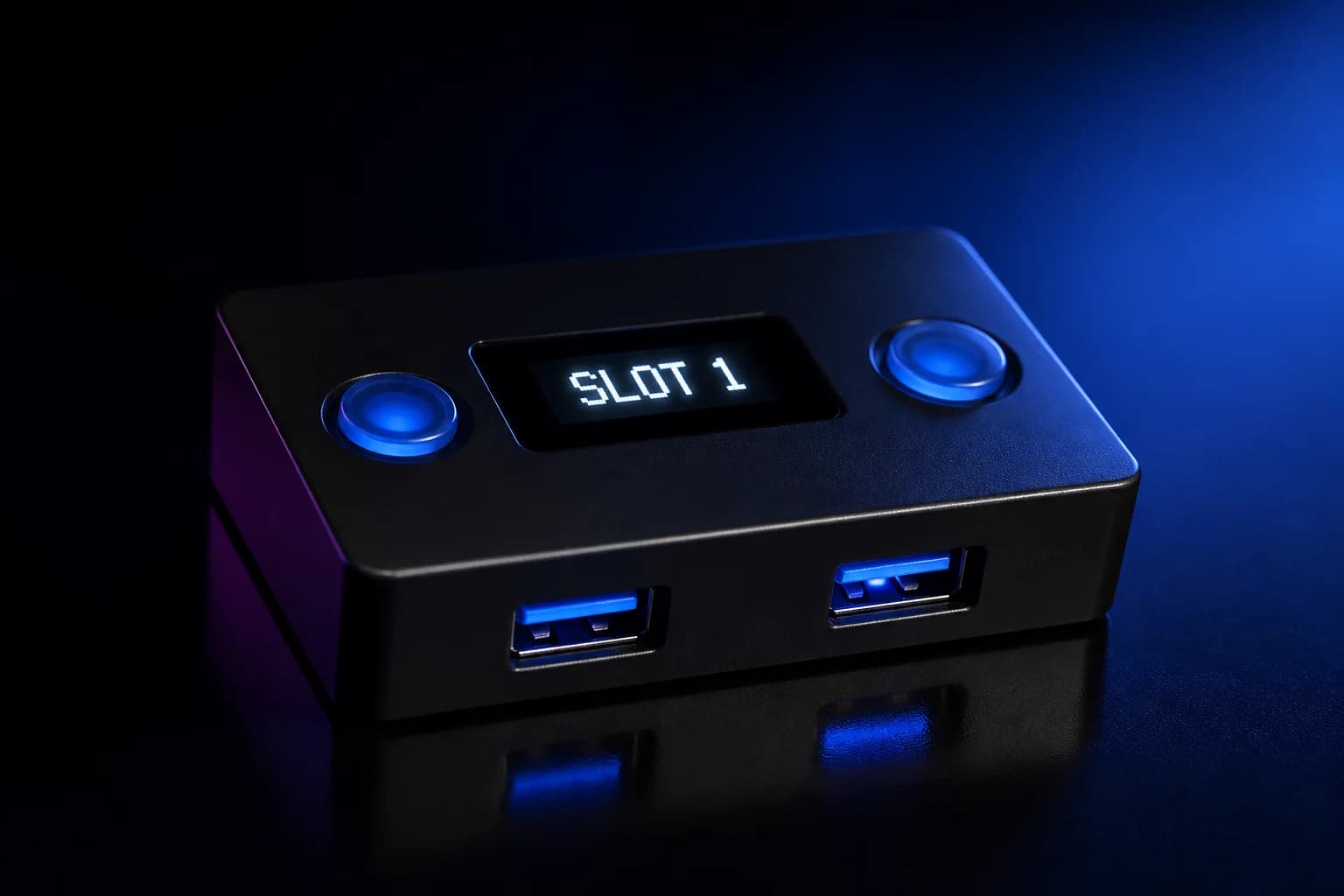
Cronus Zen ports and buttons explained: PROG, CONSOLE, A1, A2, A3, P1, P2 and reset
What each USB port on the Cronus Zen is for, which port your controller, mouse, keyboard, Zen LINK and PC go in, why A1 matters for Xbox authentication, what the P1 and P2 buttons do, and what the blue reset button underneath is for.
- Updated
Quick answer
The Cronus Zen has two USB-C ports on the back and three USB-A ports on the front. The rear CONSOLE port goes to the console or PC you play on; the rear PROG port goes to a PC only for programming. On the front, A1 is reserved for the Xbox authenticating controller; A2 and A3 take everything else.
What is on the back of the Cronus Zen?
Two USB-C ports sit on the rear edge, labelled on the case. The official guide is blunt that they are not interchangeable.
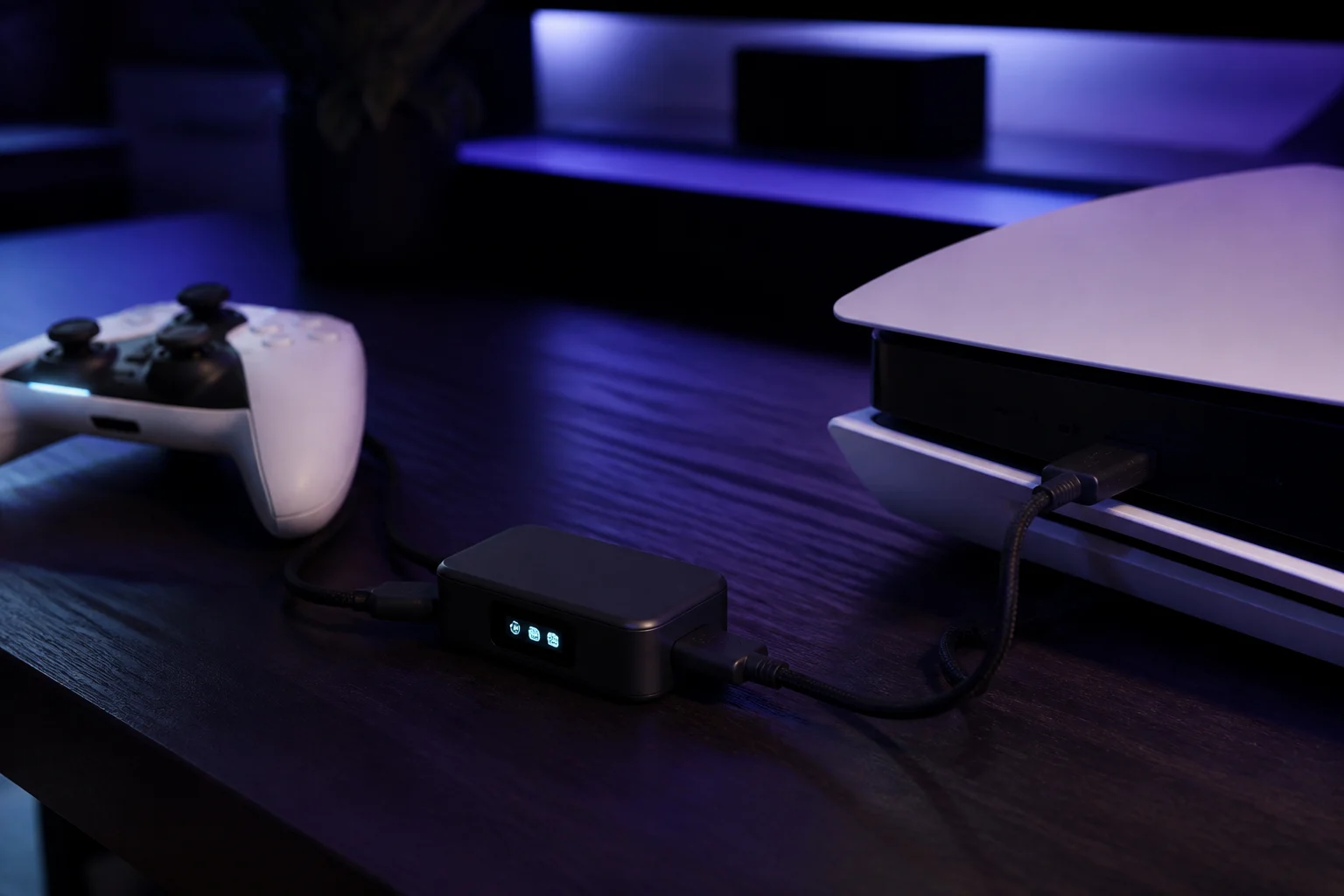
CONSOLE. This is the output. It connects to whatever you are playing on: the console's USB port, a PC, or a Zen LINK-equipped setup for PS5. Everything the Zen produces, including the emulated controller identity, leaves through this port. It also draws the Zen's power from the host.
PROG. Short for "programming". This is the port a PC uses to talk to Zen Studio. Zen Studio Live in the browser and Zen Studio Legacy both connect through PROG. You need it connected to flash firmware, program slots, change M&K profiles or run Device Monitor. You do not need it connected to play.
A common beginner error is to swap them: plugging the console into PROG makes the Zen invisible to the console, and plugging the PC into CONSOLE puts the Zen in PC controller mode, so Zen Studio cannot see it. When Zen Studio says the device is not detected, check which rear port the PC is on first. See Zen not detected.
What are the three front ports for?
Three full-size USB-A ports face you on the front, labelled A1, A2 and A3.
A1: the authentication port
On Xbox One and Xbox Series X|S, the console requires an authenticating controller. It must be an official Xbox controller (or licensed equivalent that carries the security chip) and it must be in A1. The Zen uses that controller to answer the console's security handshake; it does not matter whether you actually play on it.
On PS4, PS5 (via Zen LINK) and Nintendo Switch, A1 has no special role, but Collective Minds' diagrams put the main controller there and it is a sensible habit.
A2 and A3: everything else
Second controller, keyboard, mouse, Xbox Wireless Adapter, Zen LINK module, or a Bluetooth dongle in the older Zen Studio bluetooth workflow. The official mouse and keyboard guide shows the mouse in A3 and keyboard in A2, but the Zen identifies devices by type, not port.
What about power?
The front ports are powered by the CONSOLE port's host. Three devices with lighting can exceed that budget. Symptoms are the OLED flickering, devices disconnecting or the Zen restarting. A powered USB hub on a front port fixes it; see laptops, hubs and power.
What do the P1 and P2 buttons do?
The two large blue buttons either side of the OLED are P1 and P2. In normal use they step through memory slots and move around any menu a GamePack or script draws on the OLED. P2 doubles as the Bluetooth pairing button: tap it, then put a DualShock 4, DualSense, Switch Pro Controller or Joy-Con into pairing mode, and the official platform guides describe the controller pairing to the Zen within a few seconds.
Held together while plugging in the CONSOLE/PC port, P1 and P2 trigger the hard reset: keep them held for at least four seconds until the RGB LEDs flash red, green and blue and the Collective Minds logo appears. Full steps are in factory reset.
What does the blue reset button do?
Underneath the Zen is a small recessed blue button. Its job is bootloader mode: hold it, plug the top CONSOLE/PC port into a computer, and release when the OLED reads "Zen Bootloader". Zen Studio Live's firmware updater and the web update tool look for the device in this state. It is how you recover from a failed update or force a reflash. Details are in how to update firmware.
The Nintendo Switch guide also mentions tapping the reset button to resynchronise if the Switch's USB indicator does not appear, so a quick tap is a harmless first step when the console is not registering the Zen.
What does the OLED show?
The monochrome display on top shows the active slot number during play, the connected controller type, and status messages during programming and errors. Some GPC scripts draw their own text on it. A full list of messages is in OLED messages and Zen LINK LED meanings.
Which cable goes where?
The current retail box includes a short 12 in USB-C cable, two 3 ft USB-C cables and a 3 ft micro-USB cable for older controllers such as the DualShock 4. Use a long cable from CONSOLE to the console and another from PROG to a nearby PC; the short one suits a wired controller on a front port. All are data-capable. Charge-only USB-C cables from phone accessories are the single most common cause of "not detected" tickets: the official guide's test is to connect your phone to the computer with the cable and see whether the phone's files appear.
A port-by-port cheat sheet
| Port | Connector | Connect to | Required for |
|---|---|---|---|
| CONSOLE/PC | USB-C | Console or PC you play on | Play |
| PROG | USB-C | PC running Zen Studio | Programming |
| A1 | USB-A | Authenticating controller (Xbox) or main controller | Xbox play |
| A2 | USB-A | Keyboard, second controller, adapter | Optional |
| A3 | USB-A | Mouse, Zen LINK, Xbox Wireless Adapter | Optional |
| P1 / P2 | Buttons beside OLED | Nothing | Slot change, OLED menus, Bluetooth pairing (P2), hard reset (both) |
| Blue reset button | Button underneath | Nothing | Bootloader mode |
Why does this layout matter?
Once the ports and buttons make sense, most setup guides collapse to one sentence: console on CONSOLE, PC on PROG when needed, controller in A1, extras in A2 and A3. Every platform guide on this site follows that pattern, from Xbox to PC.
Frequently asked questions
Can I leave PROG connected to a PC while I play?
Does the controller have to be in A1?
What is the blue button underneath for?
What cables do I need?
Sources
Every link was live when this guide was last updated.
- 01Cronus Zen main hub (official guide)guide.cronuszen.com
- 02All-in-one easy setup (official guide)guide.cronuszen.com
- 03Troubleshooting, bootloader and hard reset (official guide)guide.cronuszen.com
- 04Xbox Series X|S setup (official guide)guide.cronuszen.com
- 05Zen Studio errors and detection (official guide)guide.cronus.support
This guide is independent and unofficial; product names belong to their owners. Found an error? Use the contact page and we will correct it and note the change.