Using the Cronus Zen OLED menu: slots, settings and status without a PC
How to read and navigate the Cronus Zen's OLED display: what the home screen shows, how to change slots and view device info on the device itself, what scripts can draw, and what the display cannot do.
- Updated
Quick answer
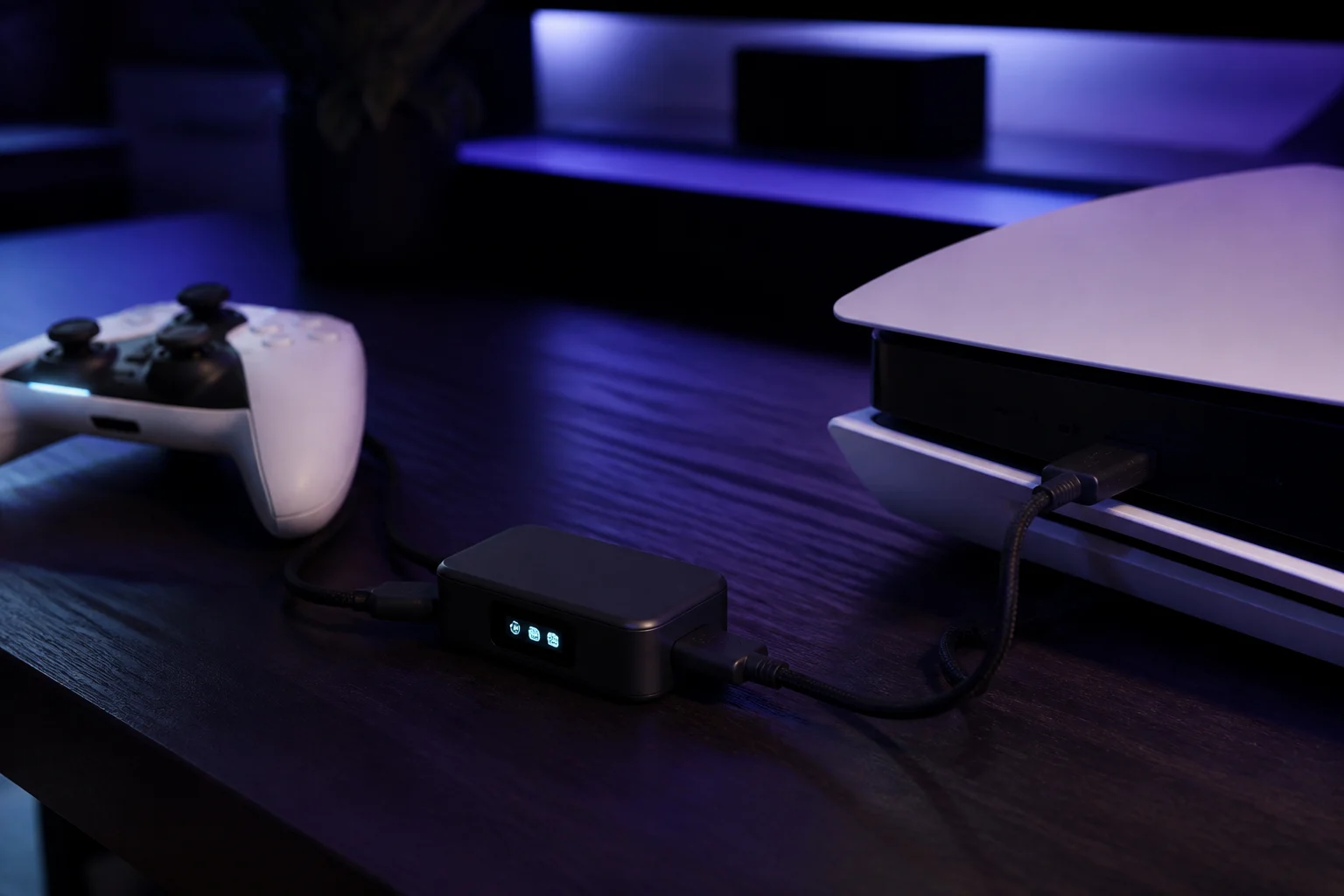
The Cronus Zen's small monochrome OLED shows the active slot, connected devices and status messages, and the P1 and P2 buttons beside it change slots and navigate menus without a PC. Device settings themselves live in Zen Studio's Device tab. GPC scripts can draw text and shapes on the OLED, so what you see also depends on the running script.
What does the OLED show by default?
Power the Zen with no script running and the display shows a short boot sequence, then settles on a home screen. Depending on firmware version and what is connected you will see:
- The active slot number, large and central.
0or a blank means passthrough. - The controller type detected on the front ports, for example DS4, DualSense, Xbox or Switch Pro.
- The output mode, meaning what the console believes is connected.
- A connection indicator for the CONSOLE port, and for Zen LINK when the module is attached.
During firmware updates it shows "Zen Bootloader" and a progress indicator. Error codes such as E3001 and E3002 appear here too; the full list is in OLED messages and Zen LINK LED meanings.
How do I change slot from the device?
You do not need a PC. The two large blue P1 and P2 buttons beside the OLED step through the memory slots, and the display updates immediately with the new number. If you would rather not reach for the device, enable Remote Slot Change in Zen Studio Legacy's Device tab and you can change slots from the connected controller; the official page notes the button combination varies by controller type.
Practical notes:
- Empty slots are skipped by some firmware and shown as empty by others. Either way, an empty slot behaves as passthrough.
- The Zen returns to the last selected slot on power-up, so a single-game setup needs no daily attention.
- The change is instant. If the game does not appear to react, the slot's script may have a toggle that starts off; check its documentation.
Detail on organising slots is in slot management.
What can I see about the device?
The status screens let you confirm without opening Zen Studio:
- Firmware version at boot.
- Which controller is authenticating on Xbox, useful when a Series controller is in A1 but the console still complains.
- Zen LINK state when the module is fitted, alongside the module's own LED.
For anything deeper, Zen Studio Legacy's Device Monitor is the tool, showing every input and output value live.
Which accessories use the OLED menu?
The Zen Back Button for the DualShock 4 is configured entirely on the device. The official guide has you press the accessory's mapping button until a menu appears on the Zen's OLED, hold the paddle you want to map, press one of the 17 controller functions, and press Circle to save. GamePacks likewise expose their MOD toggles through button combinations that show state on the OLED. This is the sense in which the Zen has a menu: scripts and accessories draw it, and P1, P2 and the controller drive it.
What can scripts draw?
GPC has a family of OLED functions: clear the screen, print a string at a position with a chosen font size, draw pixels, lines and rectangles, and invert regions. GamePacks use them to show which MODs are active. Your own scripts can too. The pattern that works well:
- Draw only when something changes, not every cycle, to keep the loop light.
- Keep to two or three lines so the display is readable from the sofa.
- Use the display to confirm state (which mode is on) rather than continuous numbers, which flicker.
The official GPC OLED page lists each function and its arguments. See OLED and LED feedback in GPC for worked examples.
What the OLED cannot do
- It cannot edit scripts or GamePack settings. Configuration happens in Zen Studio.
- It cannot browse files or download anything.
- It is not a touchscreen.
- It does not show latency or controller battery.
Owners coming from devices with richer built-in menus sometimes expect more. The Zen's philosophy is to keep configuration on the PC and keep the device simple.
Where are the real settings?
In Zen Studio. In Legacy, the Device tab holds the emulator output protocol (Auto, PlayStation, Xbox, Switch, PS3, Xbox 360 or PC/Mobile), the PS Remote Play toggle, PS4 Speciality mode, Remote Slot Change, DualShock 4 light bar brightness, Bluetooth pairing management and the maintenance tools: Factory Reset, Erase Memory Slots, Reset Device and Find Device. Live exposes the equivalent options in its own panels. Changes are written to the device immediately over PROG.
Care notes
The OLED is a standard small monochrome panel. It does not need protection, but constant static text over years can cause faint ghosting, as with any OLED. A script that blanks the screen after a minute avoids it.
Frequently asked questions
Can I change every setting from the OLED?
Is the OLED touch or button driven?
My OLED shows text I do not recognise.
Can I turn the OLED off?
Sources
Every link was live when this guide was last updated.
This guide is independent and unofficial; product names belong to their owners. Found an error? Use the contact page and we will correct it and note the change.