How to update Cronus Zen firmware (and fix a failed update)
The exact firmware update procedure for the Cronus Zen using Zen Studio Live, the Legacy tool or the web updater, plus fixes for 0.0.0, DFU Download Failed, stuck flashing and E3001.
- Updated
Quick answer
Unplug every cable from the Cronus Zen, hold the small blue button on the underside, and plug the CONSOLE/PC port into your computer until the OLED reads "Zen Bootloader". Open Zen Studio Live, choose Update Device, select Cronus Zen and wait for the flash to finish. Never unplug mid-flash. If it fails, repeat on a powered port.
Why update the firmware first?
Firmware is the software running on the Zen itself. Every GamePack and script is compiled against a firmware line, and Zen Studio refuses to talk to a device whose firmware is too old ("Firmware Version Incompatible"). Updating before anything else removes an entire class of problems, which is why Collective Minds makes it step two of its quick start, right after opening Zen Studio Live.
What do I need?
- A USB-C data cable. Charge-only cables are the most common cause of "No Devices Found".
- A computer with Chrome or Edge (for Zen Studio Live or the web updater) or Windows 10/11 (for Zen Studio Legacy).
- A USB port that supplies full power: a rear motherboard port on a desktop, or a powered hub.
- Ten uninterrupted minutes. Do not start an update on a laptop about to sleep.
How do I update, step by step?
- Unplug everything from the Zen. Controllers, the console cable and the PROG cable. The Zen should be completely dark.
- Hold the blue button. It is the small recessed button on the underside of the device. Keep it held for the next step.
- Plug the top CONSOLE/PC port into your computer. Still holding the button, connect the cable. The OLED should show "Zen Bootloader". Release the button.
- Open Zen Studio Live at zenstudio.collectivemindsstore.com in Chrome or Edge and click Connect Device. Approve the WebUSB prompt for the Zen.
- Choose Update Device (or Update Firmware). Select "Cronus Zen" as the device when asked, and confirm the version offered is the current one.
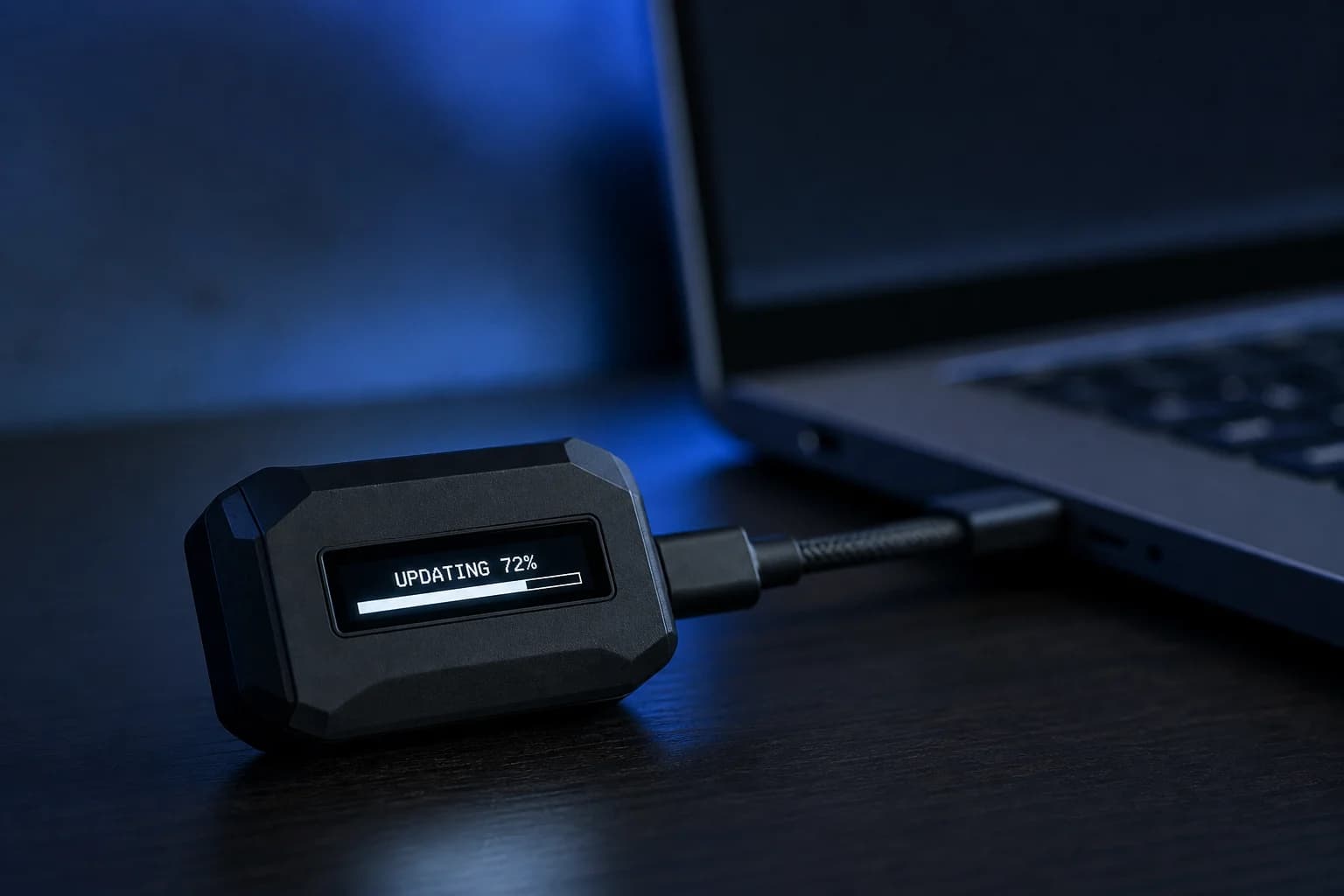
- Wait for the flash to complete. The OLED shows progress. Do not touch the cable, close the tab, or let the computer sleep until the tool reports success and the Zen reboots to its normal screen.
- Verify the version. Reconnect via PROG and check the firmware version shown in the device panel matches what you installed.
- Reprogram slots if needed. If any slot shows empty or a script throws a bytecode error, recompile and program it again.
Alternative: Zen Studio Legacy
Enter bootloader mode the same way, open Zen Studio Legacy on Windows and use Tools → Firmware Update, then choose the online update. The Legacy tool pairs with firmware 2.2.14 according to the official error pages; if it refuses a newer device, use Live.
Alternative: the Web Update Tool
The official downloads page links a browser-based updater for Chrome and Edge that works on Windows, macOS and Android with a USB OTG cable. The steps are identical: bootloader mode, connect, select version, flash.
How do I fix a failed update?
All of these fixes come from the official firmware error page.
| Message or symptom | Meaning | Fix |
|---|---|---|
| No Devices Found | Zen not in bootloader, wrong port, or charge-only cable | Redo steps 1–3 with the top port and a known data cable; try a powered hub |
| Firmware Version Incompatible | Tool and device versions do not match | Update Zen Studio Legacy to 1.6.1 Build 82 and flash again, or use Live |
| 0.0.0 shown as version | Previous flash interrupted | Repeat the update from bootloader mode |
| DFU Download Failed | Cable or power fault during transfer | Different cable, rear USB port or powered hub, then retry |
| Stuck on Flashing Firmware | Tool lost the device mid-flash | Unplug all cables, reboot the computer, retry |
| Unexpected Error | Generic tool failure | Unplug all cables, reboot the computer, retry |
| Network Error | Updater cannot reach the firmware server | Disable firewall or VPN temporarily, or try another network |
If the unit will not accept a flash after several clean attempts on a good cable and a powered port, the official guidance is that the hardware is faulty and should go through warranty.
What is E3001 and how is it related?
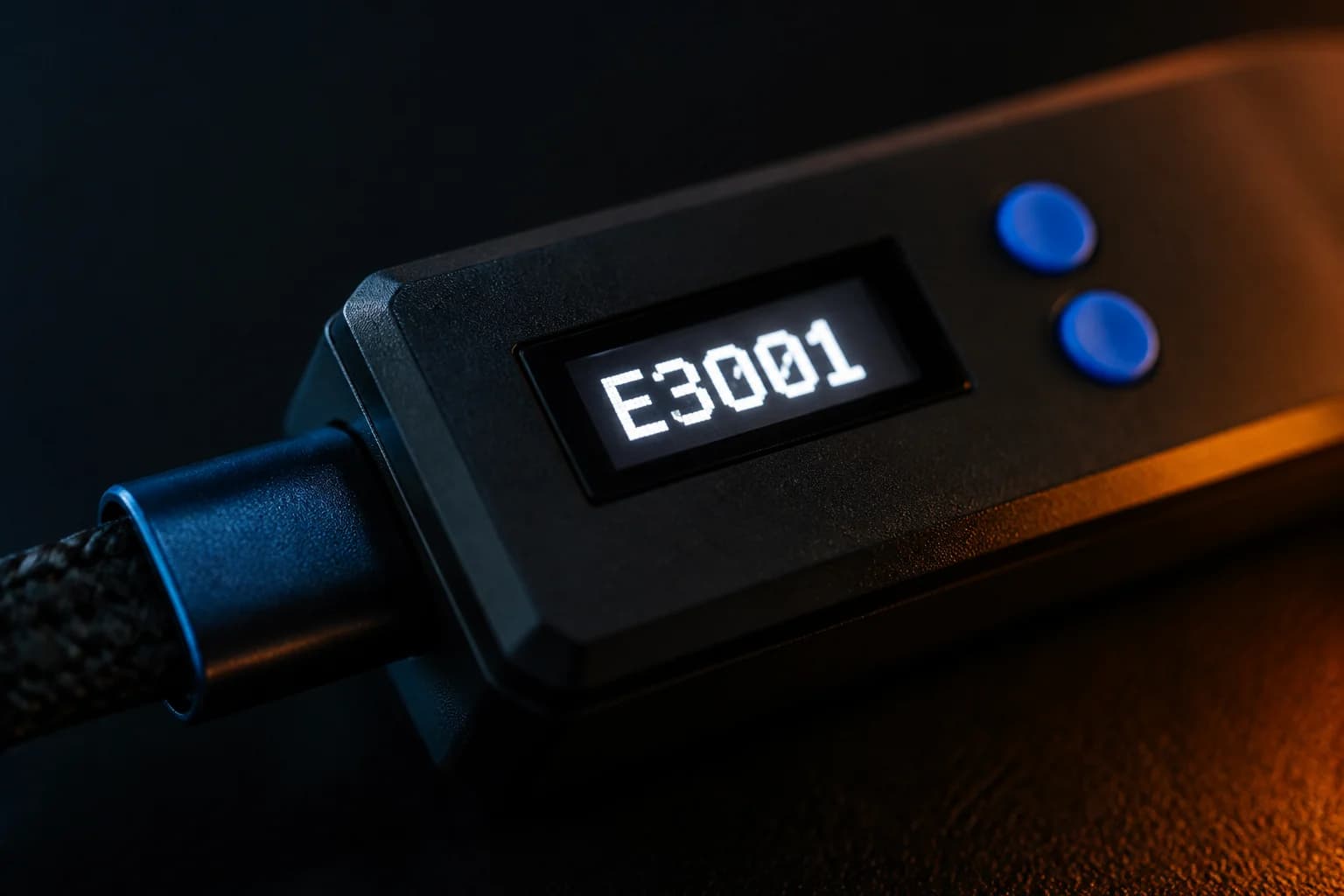
E3001 on the OLED means the firmware is missing or corrupt. It usually appears after an interrupted flash or a power drop during boot. The fix is exactly the update procedure above: bootloader mode, then flash. E3002, by contrast, indicates a runtime crash and is covered in the 15 most common problems.
What about stack or bytecode errors after updating?
"Stack overflow" or "Bytecode underflow/overflow" on the OLED means a slot contains a script compiled for a different firmware line. Recompile the script in the current Zen Studio and program it again. If a slot is unrecoverable, erase it from the Device panel or Live's slot list.
Why does bootloader mode matter?
Normal operation and firmware flashing are two different modes. In normal mode the Zen runs its firmware and talks to Zen Studio over the PROG port about slots and scripts. In bootloader mode the firmware is not running at all; a tiny resident program listens on the top port for a new firmware image. That is why the update uses the top port, why the blue button is involved, and why "No Devices Found" appears if you try to flash through PROG. The bootloader is also what saves a unit after a failed flash: as long as the OLED can still show "Zen Bootloader", the device can be recovered no matter how corrupt the main firmware is.
How often should I update?
When a GamePack you use requires it, when Zen Studio prompts you, or when the official changelog lists a fix you need. There is no benefit in flashing every minor release the day it appears; there is a real cost if a flash goes wrong on the day of a tournament. Read our firmware history guide for what the major releases changed.
Frequently asked questions
Which firmware version should I be on?
Do I lose my slots when updating?
Can I downgrade firmware?
The OLED shows 0.0.0. Is the Zen dead?
Sources
Every link was live when this guide was last updated.
- 01Step 2, update firmware (official guide)guide.cronuszen.com
- 02Firmware errors and fixes (official guide)guide.cronus.support
- 03Hardware errors including E3001 (official guide)guide.cronus.support
- 04Official changelogguide.cronuszen.com
- 05Downloads, including the Web Update Tool (official guide)guide.cronus.support
This guide is independent and unofficial; product names belong to their owners. Found an error? Use the contact page and we will correct it and note the change.