Reducing Cronus Zen input latency: what actually helps
Where lag enters a Cronus Zen setup and how to reduce it: wired controllers, cable and port choices, lean scripts, Zen LINK network quality, and the display settings Collective Minds recommends.
- Updated
Quick answer
The Cronus Zen adds a small, fixed processing delay because it reads, processes and re-sends every input. The lag people notice usually comes from elsewhere: a Bluetooth controller, a TV outside Game Mode, Zen LINK over congested Wi-Fi, or a heavy script. Go wired, use Game Mode, keep scripts lean and use a strong 2.4 GHz signal.
Where does latency come from in a Zen setup?
Every link in the chain adds time. A typical setup has five:
- Controller to Zen. Wired USB is fastest. Bluetooth adds radio scheduling delay; the Xbox Wireless Adapter uses Microsoft's proprietary protocol, which the official guide describes as lower latency than Bluetooth.
- Inside the Zen. The device reads the controller, runs your script's
main, and emits a report. This is the only part the Zen itself is responsible for. - Zen to console. USB is effectively instant. Zen LINK to PS5 is a network hop and varies with Wi-Fi quality.
- Console to display. Often the largest contributor. A television doing motion smoothing can add several frames.
- Display to your eyes and hands. Not something a device can fix, but a high refresh rate display shortens the frame interval.
Most owners who "feel lag" after adding a Zen have also changed something else at the same time: switched to Bluetooth, moved to a TV, or loaded a script with a heavy loop. Isolate before blaming the adapter.
Step 1: go wired at both ends
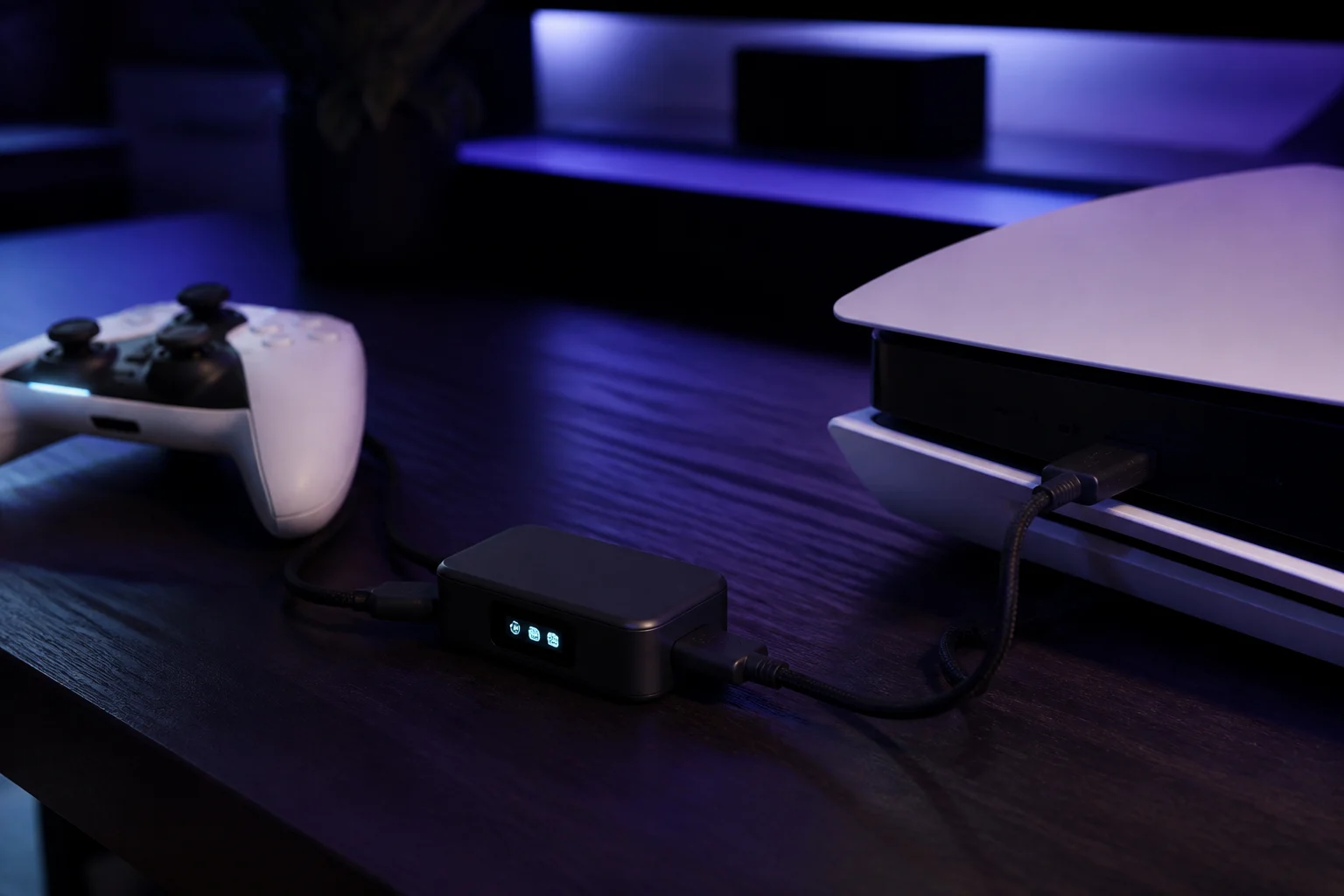
Plug the controller into a front port with the short USB-C cable from the box, and connect the Zen to the console over USB where the platform allows it. This removes two radio links in one move. If you must be wireless on Xbox, use the Wireless Adapter in A3 rather than Bluetooth. On PS5, where Zen LINK is required, the controller can still be wired to the Zen.
Step 2: fix the display
Collective Minds publishes a display lag page, and its recommendations apply whether or not a Zen is involved:
- Enable Game Mode on the TV, or use a monitor.
- If the TV has a PC input label, use it; it typically disables extra processing.
- Set the lowest response time setting the display offers.
- Disable "magic", "smooth", "motion" or "TruMotion" style processing.
- Disable HDMI-CEC and any power-saving picture modes.
- Try each HDMI input; some are processed differently.
- Do not route audio through the TV speakers if a receiver adds sync delay.
- Use the highest refresh rate the console and display share.
These changes routinely remove more delay than any adapter adds.
Step 3: keep scripts lean
The Zen runs your main block every cycle. Work that does not need to happen every cycle should not:
- Use
event_pressfor one-shot actions instead of recalculating onget_valevery cycle. - Avoid drawing to the OLED every cycle; draw when a value changes.
- Avoid long chains of nested combos.
- Do not call
set_pvarat the base ofmain; the official guide says to save only on a deliberate action.
Zen Studio Legacy's Device Monitor shows CPU load and VM speed live. Load a suspect slot and watch; if the numbers jump, simplify the script. GamePacks from Collective Minds are already tuned.
Step 4: clean up the Zen LINK network (PS5)
For PS5 owners the module is the variable that matters most.
- Put the PS5 on wired Ethernet so the only wireless hop is the Zen LINK.
- Choose a 2.4 GHz channel with little congestion; many routers can show channel usage.
- Keep the module and the router in line of sight where possible; the front of the Zen is a poor antenna location behind a metal console.
- Remove special characters from the Wi-Fi password if connections drop; the official guide lists this as a known issue.
- On the original Zen LINK, enable UPnP or forward the Remote Play ports so traffic is not relayed.
- Give the PS5 and the configuring PC static IPs on V1 setups.
Step 5: check power
An under-powered Zen does not add latency, it drops inputs. If sticks stutter or buttons register late in bursts, suspect power before latency. A powered hub fixes it; see laptops, hubs and power.
How do I measure whether a change helped?
Without lab equipment, use a repeatable in-game test: a rhythm game's calibration screen, a fighting game's input display, or a shooter's firing-range dummy. Change one thing at a time. If the game offers a controller latency reading, note it before and after adding the Zen; the difference is the honest number for your setup.
What does not help
- Overclocking talk from PC peripherals does not apply; the Zen's cycle rate is fixed by firmware.
- Third-party "low latency" scripts cannot make the device process faster than its cycle. Any claim otherwise is marketing.
- Removing the auth controller on Xbox is not possible; it is required for the console to accept input.
The honest summary
The Zen adds a small, constant delay that most players cannot distinguish. What they can distinguish is Bluetooth versus wired, a television versus a monitor, and a congested Wi-Fi channel versus a clean one. Fix those and the adapter disappears into the chain.
Frequently asked questions
How much latency does the Zen add by itself?
Is Zen LINK slower than USB?
Does a heavier script mean more lag?
Should I turn off rumble?
Sources
Every link was live when this guide was last updated.
This guide is independent and unofficial; product names belong to their owners. Found an error? Use the contact page and we will correct it and note the change.