Cronus Zen with a laptop, one USB port or a hub: power problems explained
Why the Cronus Zen drops controllers, restarts or shows a flickering OLED when powered from a laptop, a hub or a crowded console port, how to tell a power fault from a cable fault, and which hub setups Collective Minds users rely on.
- Updated
Quick answer
The Cronus Zen draws all its power from the CONSOLE/PC port and must then feed everything on its front ports. A laptop port, an unpowered hub or a shared console port can fall short, causing random disconnects, a flickering OLED or reboots. Use a data-capable cable, plug straight into the host, and put hungry peripherals on a powered hub.
How does the Zen get its power?
The Zen has no battery and no power jack. Whatever host is plugged into the top CONSOLE/PC port supplies the whole device: the processor, the OLED, and every device on the three front USB-A ports. A standard USB 2.0 port provides 500 mA; USB 3.x ports provide more but not unlimited amounts, and consoles vary in what they actually deliver.
Now add up what is attached: a DualSense charging its battery, an Xbox Wireless Adapter, a gaming mouse with RGB lighting, a keyboard with a built-in hub and lighting, or a Zen LINK module with a Wi-Fi radio. It is easy to ask for more than the port can provide.
What do power problems look like?
- Random controller disconnects during play, especially early in a session while a controller charges.
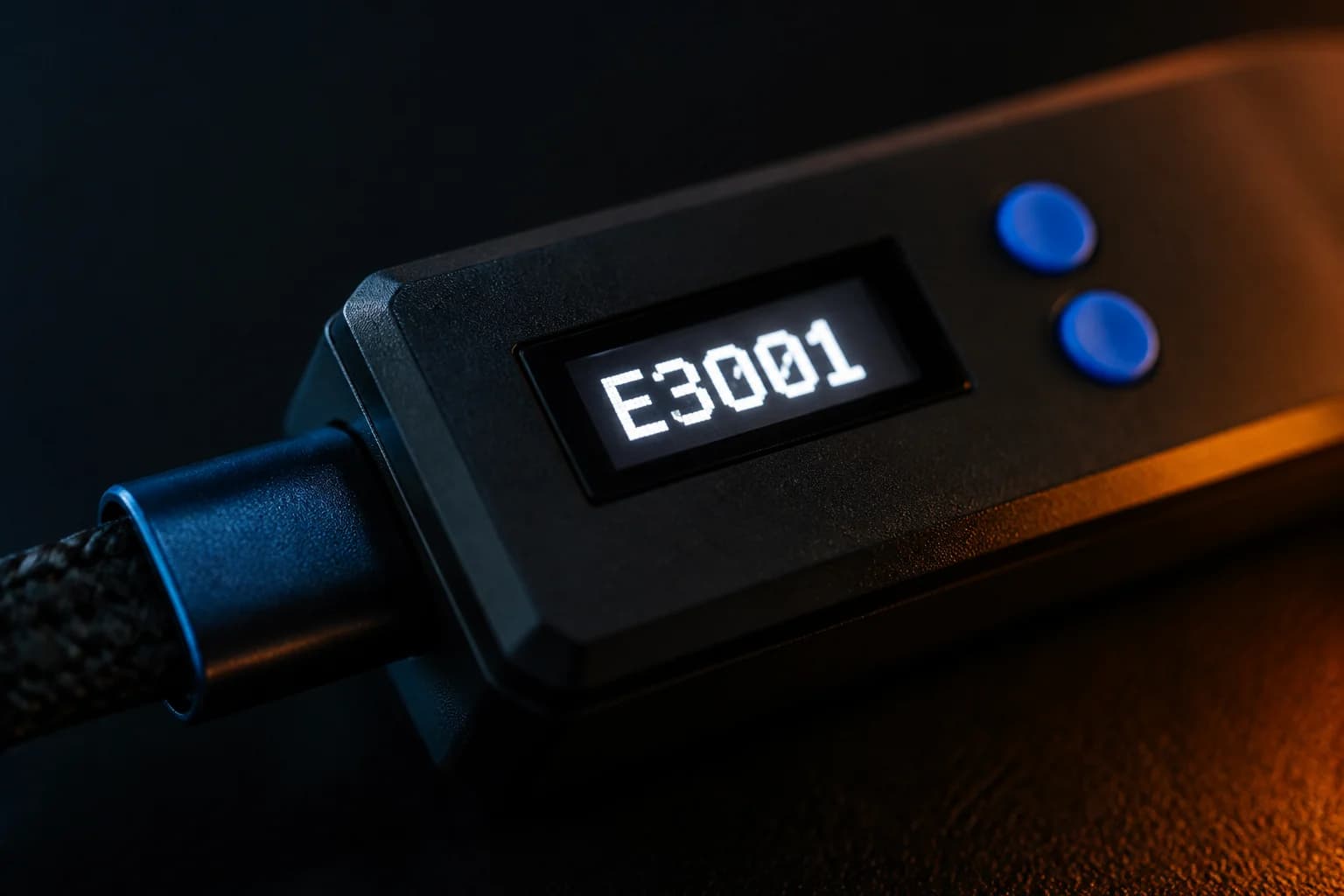
- OLED flicker or dimming when a device is plugged into a front port.
- Zen rebooting mid-game and coming back a few seconds later.
- "No Controller" appearing when the controller is clearly attached.
- Zen LINK LED going dark; the official Zen LINK troubleshooting says a dark LED means no power and to try another port or cable.
- Mouse or keyboard not detected but working fine directly on a PC.
The tell is that the problems track with how many devices are connected, not with what software is loaded.
Why are laptops and hubs the usual culprits?
Laptops often limit current on their ports to protect battery life, and some ultrabooks share one controller across every port. A laptop with a single USB-C port pushes people towards travel hubs, which are almost always unpowered and split whatever the laptop offers.
Unpowered hubs do exactly what the name says: they divide the host's supply between their ports. Putting the Zen downstream of one halves its budget before anything is even plugged into it.
Console front ports are generally fine for a Zen plus a wired controller. They struggle when you add a mouse and keyboard with lighting, or when another accessory shares the same internal hub inside the console.
What fixes it?
1. Connect the Zen directly
The CONSOLE/PC port should go straight to the console or PC, never through a hub. If a laptop has only USB-C, use a single good-quality USB-C data cable rather than a dongle where possible.
2. Use a powered hub on the front
A hub with its own mains adapter plugged into A2 or A3 provides power to the devices attached to it without drawing from the Zen. Put the mouse, keyboard and any adapter on the hub. Keep the authenticating Xbox controller in A1 directly.
3. Turn off lighting
Most gaming mice and keyboards let you disable RGB in their software or with a key combination. Lighting is a large share of a peripheral's draw.
4. Charge controllers elsewhere
A controller with a nearly empty battery draws its maximum charging current. Charge it before the session, or use a wired controller with no battery in play.
5. Pick the right host port
On PCs, rear motherboard ports are usually better supplied than front-panel ports. On consoles, try each port; some are on a different internal hub.
How do I rule out the cable?
Cables cause a different symptom: the Zen is not detected at all, or the OLED lights but Zen Studio never sees the device. Charge-only cables carry power but no data, and they are the single most common cause of a "not detected" ticket. Test by using the cables from the Zen's box, which are known good, or by plugging the suspect cable into a phone and checking whether the PC sees the phone as a device rather than just charging it. See Zen not detected.
Does PROG on a PC affect power?
Sometimes. Having PROG connected to a PC while CONSOLE is on a console means two hosts are attached. The Zen is designed for this, and it is how you tune with Zen Studio Live while playing, but on marginal setups it can change the power picture. The official PC guide also insists that you disconnect PROG before starting any game on PC. If disconnects only happen with PROG attached, that is your answer.
A quick checklist
- Zen's CONSOLE/PC port straight into the host, with a data cable.
- Authenticating controller in A1, wired.
- Mouse, keyboard, adapters on a powered hub in A2 or A3.
- RGB lighting off.
- Controllers charged before play.
- Try a different host port before assuming a fault.
If the Zen still misbehaves with only a single wired controller attached and a known-good cable straight into a console, power is not the problem and the troubleshooting guide is the next stop.
Frequently asked questions
How do I tell a power problem from a bad cable?
Can I use any USB-C cable from a laptop?
Does a powered hub go between the Zen and the console?
Will a phone charger power the Zen?
Sources
Every link was live when this guide was last updated.
This guide is independent and unofficial; product names belong to their owners. Found an error? Use the contact page and we will correct it and note the change.