Cronus Zen and Steam Input: settings that stop the two from fighting
How Steam Input and a Cronus Zen interact on Windows: which Steam controller settings to enable or disable, why Steam may grab your controller directly over Bluetooth, how to check that exactly one device is visible, and per-game layout advice.
- Updated
Quick answer
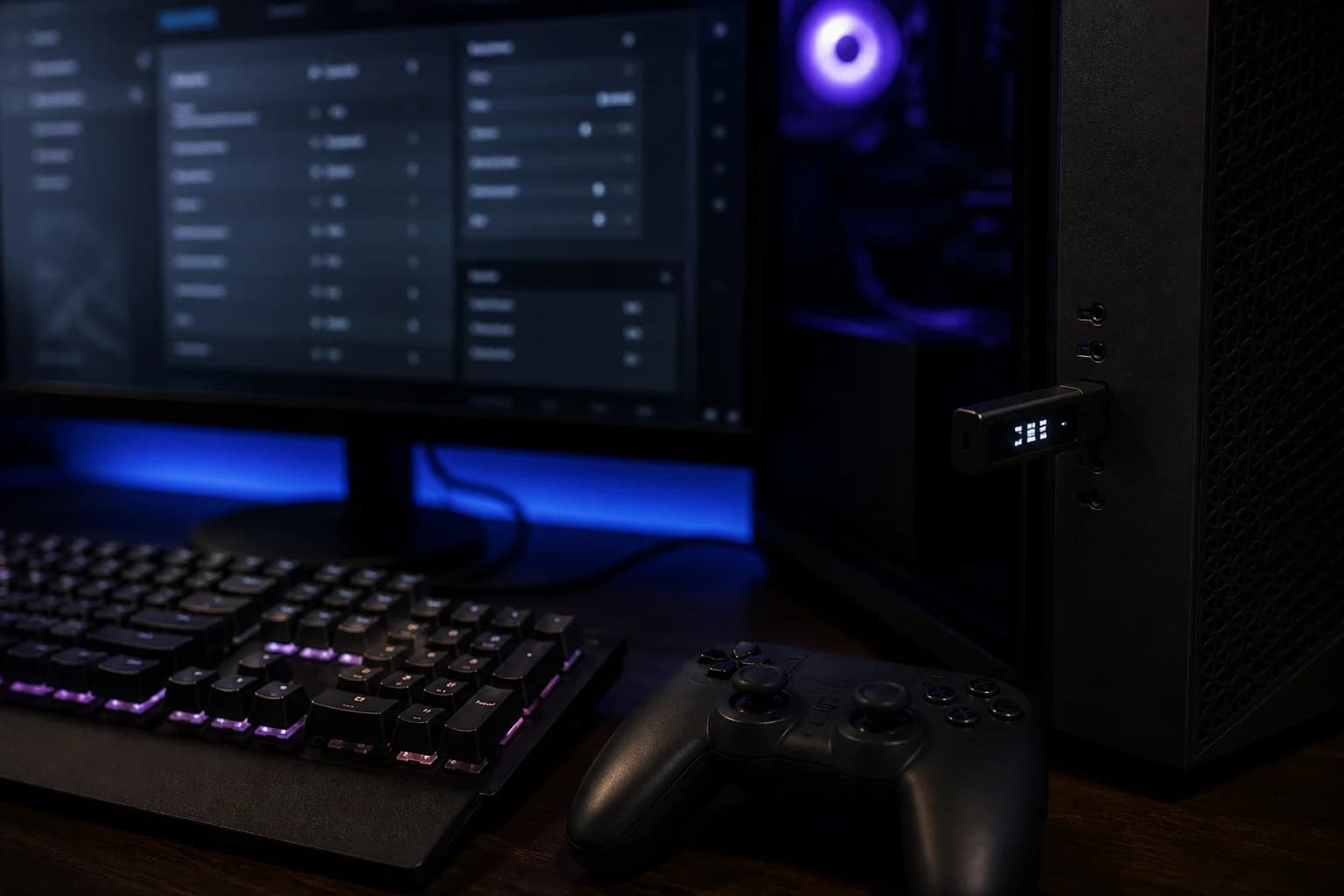
On PC the Cronus Zen appears to Steam as an Xbox controller. Keep Xbox controller support enabled in Steam, turn off PlayStation and Switch support so Steam cannot bypass the Zen and talk to the pad directly, leave per-game layouts on the default Xbox template, and disconnect the PROG cable before launching a game as the official guide requires.
What is Steam Input and why does it matter here?
Steam Input is Valve's controller layer. It sits between any controller Steam recognises and the game, translating the physical pad into whatever the game expects and letting you remap, add gyro aiming or change stick curves per game. It is excellent on its own. The complication is that the Cronus Zen does the same job one step earlier, so on a PC you can end up with two remapping layers that do not know about each other.
The goal of this guide is to make Steam see one controller, an Xbox-type pad presented by the Zen, and leave it alone.
How does Steam see the Zen?
With the Zen's CONSOLE/PC port connected to the PC and output protocol on Auto, the Zen enumerates as an Xbox controller. Steam picks that up under Settings → Controller as an Xbox controller. That is exactly what you want. The physical pad in A1 is invisible to Windows because it is attached to the Zen, not the PC.
Problems start when the physical pad is also visible to Windows: a DualSense paired to Windows over Bluetooth while it is wired to the Zen, an Xbox controller whose wireless adapter is in the PC rather than the Zen, or simply a second cable into the wrong place. Then Steam has two devices and may prefer the direct one.
Which Steam settings should I change?
Open Steam → Settings → Controller:
- Xbox controller support: enabled. This is how Steam sees the Zen's output. Leave "Xbox Extended Feature Support" off unless you need it; it installs a driver that is unnecessary here.
- PlayStation controller support: disabled when the pad you are using is a DualSense or DualShock 4 through the Zen. This prevents Steam from talking to the pad directly if Windows can see it.
- Nintendo Switch Pro support: disabled for the same reason if you use a Pro Controller.
- Guide button focuses Steam: your choice. It does not affect the Zen.
- Test Device Inputs: confirm one Xbox controller appears and that sticks and buttons move here when you use the pad plugged into the Zen.
If a second device is listed, unplug the Zen and see which one remains; that is the direct connection you need to remove.
How should I set per-game layouts?
For each game, open its controller settings from the Steam library:
- Default Xbox template. Leave the layout as Steam's default for an Xbox controller. Do not remap in Steam and on the Zen at the same time or you will lose track of which layer did what.
- Or disable Steam Input for the game. Under the game's Properties → Controller, choose "Disable Steam Input". The Zen's XInput output then reaches the game directly. Many owners prefer this because it removes one variable.
- Rumble. If vibration feels doubled or delayed, turn off Steam's rumble emulation for the game.
- Gyro. Steam's gyro features need a direct connection to a DualSense or Pro Controller and will not see motion through the Zen's Xbox output. Choose one: gyro via Steam with no Zen, or the Zen without gyro.
Which Zen settings matter on PC?
- Output protocol. Auto by default. If Steam or a game does not see the Zen, the official Device tab notes say to set it manually to Xbox 360 or PC/Mobile.
- PROG cable. The official PC page is emphatic: disconnect PROG before you start any game. Leaving it connected while playing can cause problems. Use it for programming and Zen Studio Live tuning, then unplug.
- Controllers. The Zen supports licensed console controllers only, not PC-only pads such as the Scuf Envision Pro.
A quick verification routine
- Zen CONSOLE/PC port to the PC with a data cable, controller in A1, PROG disconnected.
- Windows Game Controllers panel (
joy.cpl) shows one "Xbox 360 Controller for Windows" or similar. - Steam → Settings → Controller → Test Device Inputs shows one device and responds to the pad.
- Launch a game with Steam Input disabled for it; confirm the controller works.
- Re-enable Steam Input only if you specifically need a Steam feature.
Is it allowed?
Collective Minds itself warns that some PC games detect and may block or penalise third-party devices, and says to read the EULA before using any such device. Kernel-level anti-cheat systems on PC can identify the Zen's USB descriptors. Do not use the Zen in online competitive PC titles without reading Is the Cronus Zen allowed?.
Where next?
The full PC setup, including XInput basics and testing scripts without a console, is in Cronus Zen setup on PC. Mouse and keyboard through the Zen on PC is covered in keyboard and mouse through the Cronus Zen.
Frequently asked questions
Steam shows two controllers. Why?
Do I need Steam Input at all?
Which output protocol should the Zen use on PC?
Is there official support for PC?
Sources
Every link was live when this guide was last updated.
This guide is independent and unofficial; product names belong to their owners. Found an error? Use the contact page and we will correct it and note the change.