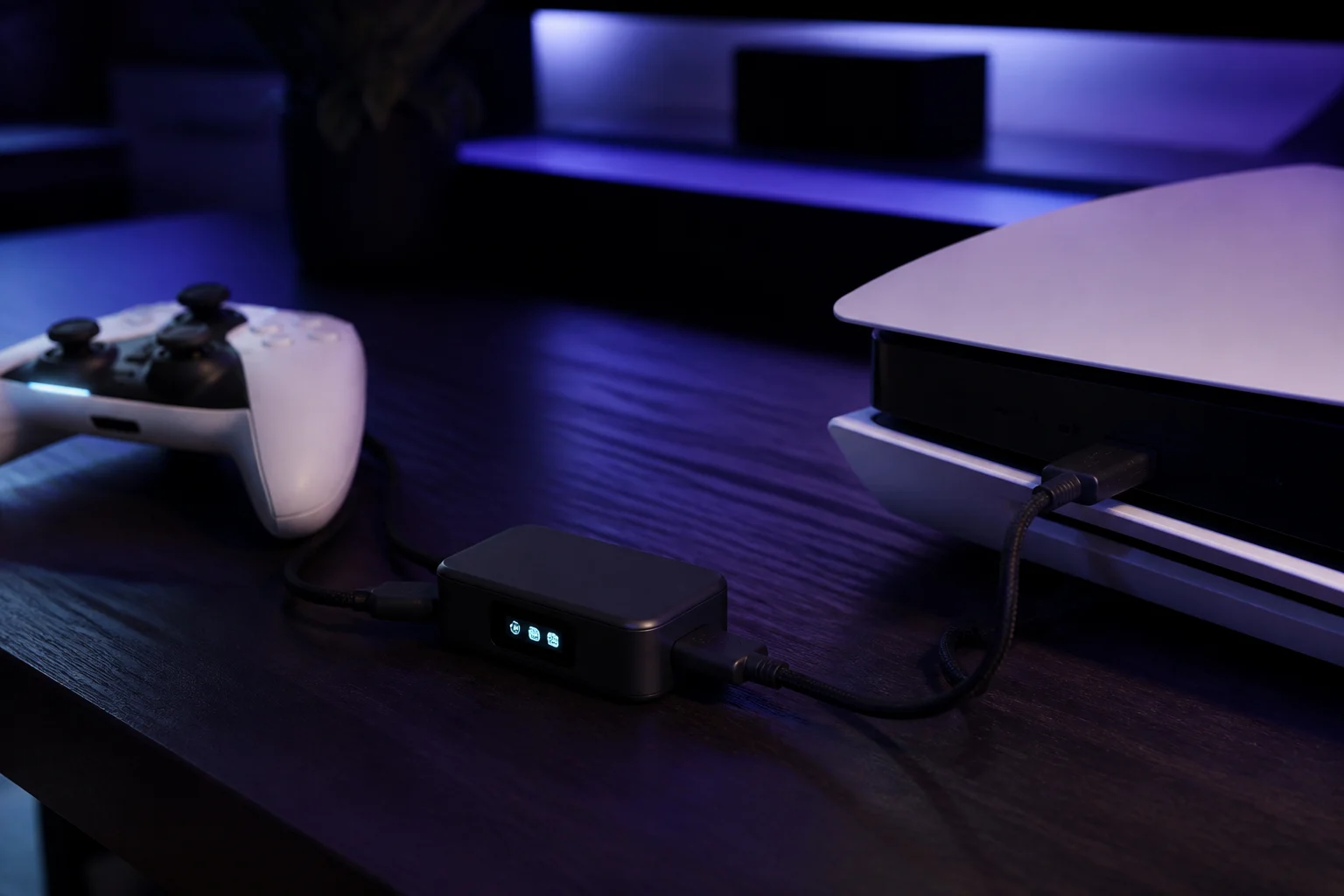
Cronus Zen setup on PC: Windows, Steam and XInput explained
How to use a Cronus Zen with a Windows PC: which port to use, why the PROG cable must be unplugged, how Windows and Steam see the Zen, and how to fix double-input problems.
- Updated
Quick answer
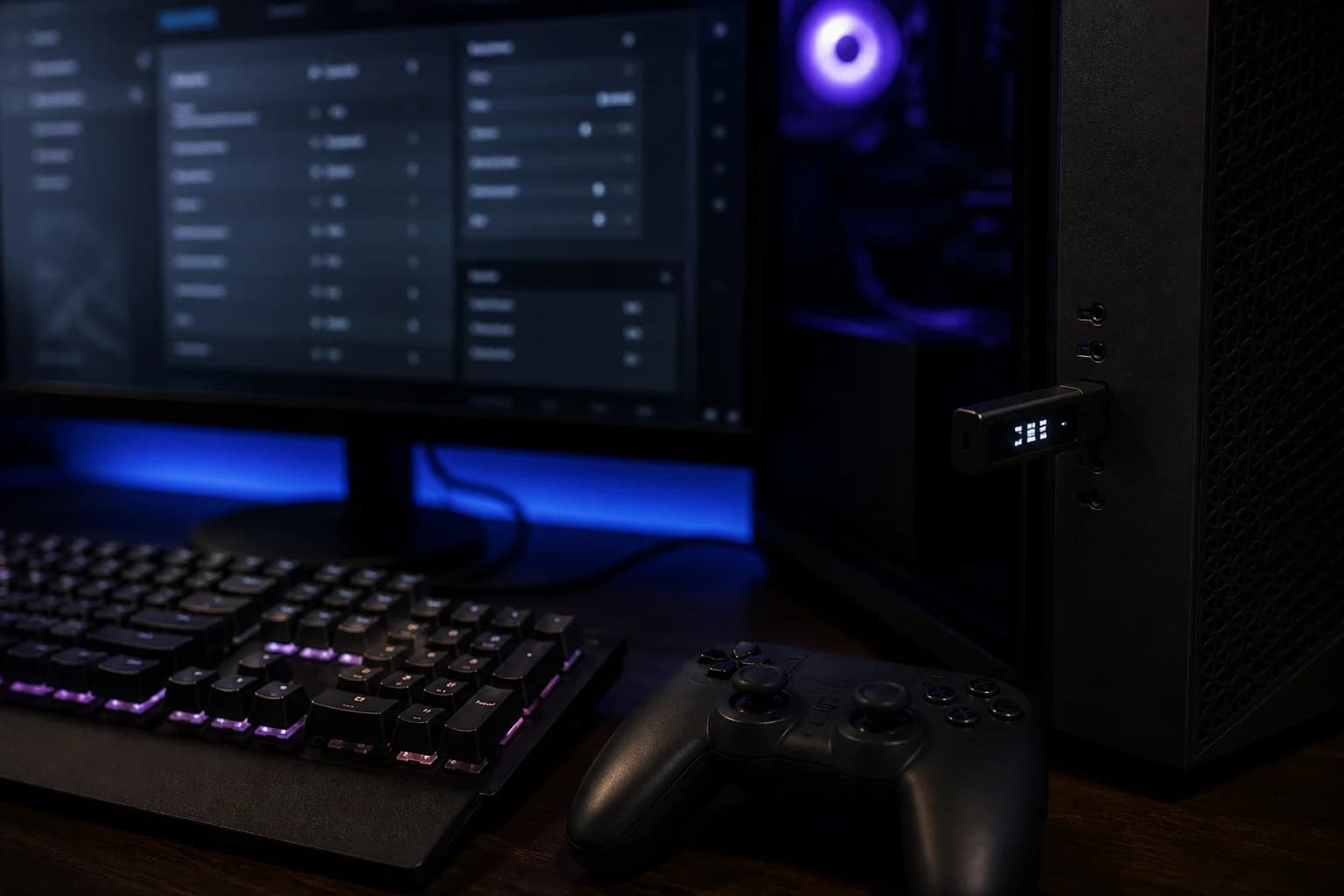
On a Windows PC the Cronus Zen presents itself as an Xbox controller. Plug the Zen's top CONSOLE port into the PC, connect your controller to A1, set the output protocol to PC or Xbox in Zen Studio, and unplug the PROG cable while you play. Steam and any XInput game then see one standard Xbox controller.
How does Windows see the Cronus Zen?
When the Zen's top port is connected to a PC, it enumerates as an Xbox controller and speaks XInput. That is the same interface Steam, the Xbox app and nearly every modern PC game expect, so no drivers or wrappers are needed. Whatever controller you plug into the Zen, be it a DualSense, a Switch Pro Controller or a keyboard and mouse, the game sees one Xbox pad.
This also means the PC is the easiest platform to learn on. There is no authentication controller, no console firmware to worry about, and you can watch the results in a controller tester in real time.
What do I need?
- Cronus Zen with current firmware.
- A Windows 10 or 11 PC. macOS and Linux can run Zen Studio Live for programming, but the official guide lists Windows for gaming.
- Two USB-C data cables: one for the top CONSOLE port and one for PROG when programming.
- Any supported controller, or a mouse and keyboard.
How do I set it up, step by step?
- Program your slots first. Connect the PROG port to the PC, open Zen Studio Live in Chrome or Edge, and load a GamePack or script into slot 1. Update firmware while you are there if the tool prompts you.
- Set the output protocol. In device settings choose PC or Xbox output. The Zen will emulate an Xbox controller either way; forcing it avoids the auto-detect picking a PlayStation profile.
- Unplug the PROG cable. The official PC page is explicit: disconnect PROG for gaming. With both cables attached Windows can see two devices and games receive duplicated or conflicting input.
- Connect the top CONSOLE port to the PC. Use a USB port on the motherboard rather than a front-panel header or unpowered hub if you can. The OLED boots and shows the active slot.
- Plug your controller into A1. Wired is simplest. For Bluetooth, press P2 on the Zen and put the controller in pairing mode.
- Verify in Windows. Open Settings → Bluetooth & devices → Devices, or run
joy.cpl, and confirm exactly one Xbox controller appears. Test buttons and sticks. - Configure Steam. In Steam → Settings → Controller, enable Xbox controller support and make sure the physical controller is not also connected to the PC directly. Launch a game and test.
How should Steam Input be configured?
Steam Input sits between the controller and the game and can remap, add gyro or change stick response. With a Zen in the chain you now have two layers doing similar jobs. Keep it simple:
- Let the Zen do the remapping. Leave Steam's per-game layout at the default Xbox template so the two systems do not fight.
- Disable PlayStation and Switch support in Steam if you connect those controllers through the Zen; otherwise Steam may grab the pad directly over Bluetooth.
- Turn off Steam's rumble emulation if rumble feels doubled.
Our guide to Cronus Zen with Steam Input goes through the settings screen by screen.
What about keyboard and mouse on PC?
There is little reason to translate a mouse into a controller on a PC that already accepts mice, unless a specific game forces controller input or you want aim assist behaviour that the game only grants to controllers. That second use is exactly what several publishers prohibit. If your goal is simply to use a keyboard for movement while a controller handles aiming, the Zen's M&K profile can do it; see keyboard and mouse through the Zen.
Can I test scripts on PC before using them on a console?
Yes, and it is the best way to learn GPC. Windows has a built-in controller tester (joy.cpl, or Settings → Devices → your controller → Properties) that shows every button and axis live. Program a script to a slot, connect the top port to the PC, and watch the tester: a rapid-fire combo shows as a flickering button, an anti-recoil value shows as the right-stick Y axis shifting while a trigger is held. Because the PC needs no authentication controller, you can iterate in seconds with only the Zen and one controller on the desk.
Steam offers a second tester under Settings → Controller → Test Device Inputs, which also confirms that Steam Input is seeing exactly one device. If both testers agree, the console side will usually behave the same, with the protocol translation handled by the Zen.
Common PC problems and fixes
| Symptom | Cause | Fix |
|---|---|---|
| Two controllers in Windows | PROG still connected, or controller also paired directly | Unplug PROG; unpair controller from Windows |
| Zen reboots when a game launches | Under-powered USB port | Use a rear motherboard port or a powered hub |
| Sticks drift or feel wrong | Output protocol mismatch or Steam curve applied | Force PC output; reset Steam template |
| Game ignores the Zen | Game requires DirectInput only | Rare; check the game's controller options |
| Zen Studio cannot see the device | Top port connected instead of PROG | Swap to PROG for programming |
Is this allowed on PC?
Windows itself does not care. Publishers do: Activision's RICOCHET policy states third-party input devices are not permitted in Call of Duty, and Epic's Fortnite rules treat the Zen as restricted hardware on every platform. Read Is the Cronus Zen allowed? before using the device in a competitive online title.
Frequently asked questions
Do I need an Xbox controller to authenticate on PC?
Why does the game see two controllers?
Can I use Zen Studio on the same PC I play on?
Does the Zen work with games that block XInput or use anti-cheat?
Sources
Every link was live when this guide was last updated.
This guide is independent and unofficial; product names belong to their owners. Found an error? Use the contact page and we will correct it and note the change.