Crossover controllers: using a DualSense on Xbox or an Xbox pad on PlayStation with the Cronus Zen
The official crossover setup for the Cronus Zen: why two controllers are needed, which goes in A1 and which in A3, the output protocol to set first, what carries over (rumble, audio, motion) and what does not, and the platform-specific notes for PS4, Xbox and Switch.
- Updated
Quick answer
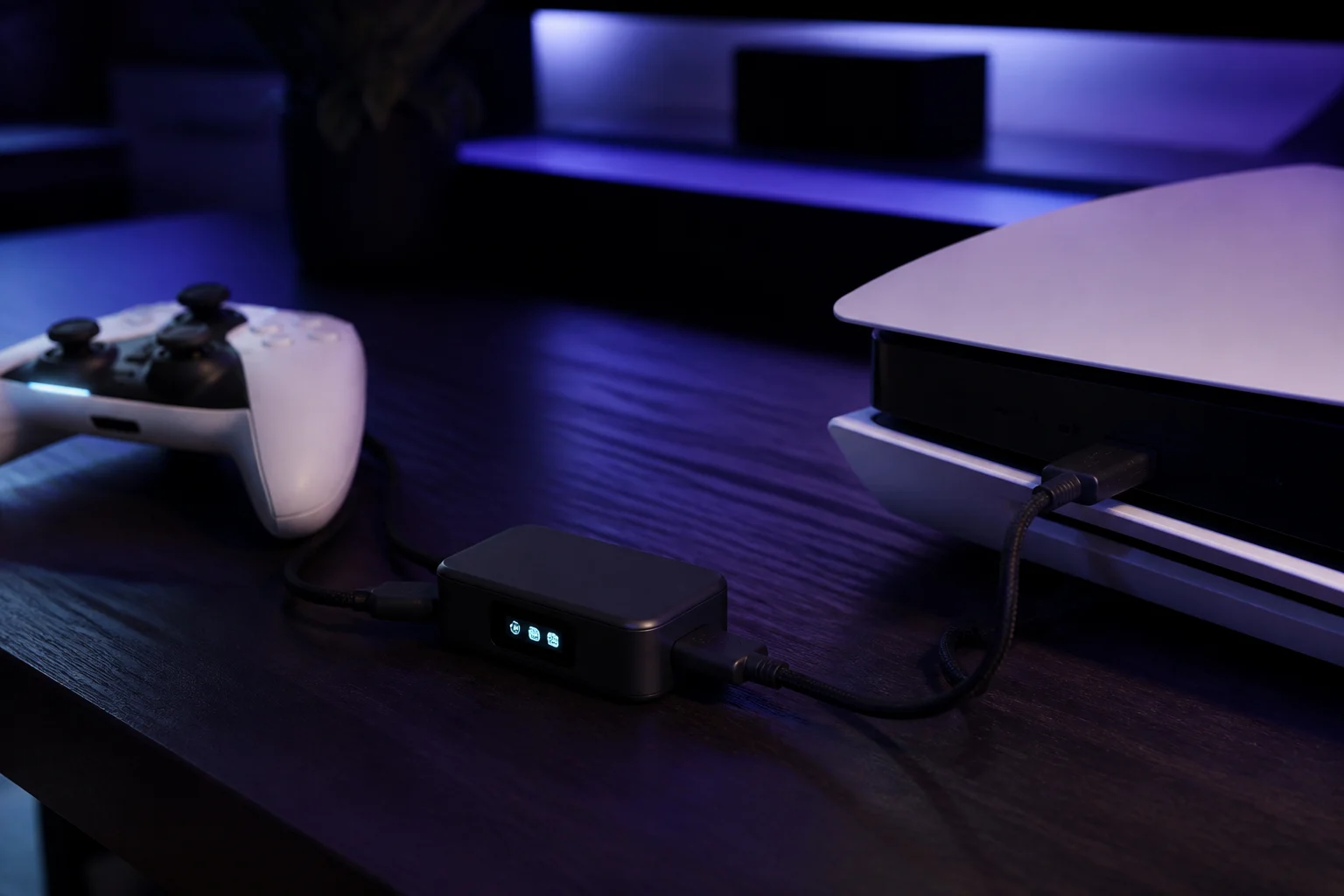
Crossover means playing with a controller from one platform on a console from another. The Cronus Zen needs two controllers at once: the console's own controller in A1 for authentication, and the controller you actually hold in A3. Set the output protocol for your console in Zen Studio first, keep the auth controller connected, and test every button in-game.
What is a crossover setup?
Collective Minds describes two ways to connect over USB. Matched is the simple case: your controller matches your console. Crossover is using a controller from a different platform than your console, for example a PS5 DualSense on an Xbox Series X, or an Xbox Elite Series 2 on a PS4. Crossover is one of the Zen's oldest and least controversial uses, and it works in Tournament Mode with all automation disabled.
Why are two controllers needed?
Because the console verifies that a genuine controller is attached. The Zen satisfies that check with a matching controller in A1, the authentication (AUTH) controller, while it translates input from the controller you hold in A3. The official guide states the auth controller must stay connected the whole time you use the crossover controller. Unplug it and the console drops the Zen.
You do not play on the auth controller. It can sit on a shelf with its cable attached.
Step 1: set the output protocol
Before either setup, connect the Zen's PROG port to a PC and set the protocol for your console in Zen Studio's device panel:
| Console | Output protocol |
|---|---|
| PlayStation 4 | PlayStation 4/5 |
| Xbox Series X|S, Xbox One | Xbox One X/S |
| Nintendo Switch | Nintendo Switch |
| PC | Auto |
| PlayStation 5 | See the dedicated PS5 guide (Zen LINK) |
Auto works for most matched setups, but crossover is more reliable with the protocol set explicitly.
Step 2: connect the console
Plug the Zen's CONSOLE/PC port into the console with a data cable. On a PS4 Pro the official page says to use a rear USB port; the front ports do not supply enough power. On Switch, the console must be docked with the 15 V supply connected, or in handheld mode with a USB-C OTG adapter.
Step 3: connect the auth controller to A1
The controller that matches the console:
- Xbox: any official Microsoft Xbox One, Series or Elite controller.
- PS4: a DualShock 4 v2. The official PS4 page says the v1 "cannot serve as the authentication controller in a PS4 crossover setup". The v2 has the light bar strip visible on the touchpad.
- Switch: a Switch Pro Controller or Horipad; enable Pro Controller Wired Communication in System Settings.
Wait a few seconds for the OLED to show the controller.
Step 4: connect the crossover controller to A3
The one you want to play with. The Zen detects its type and translates its layout automatically. A DualSense's Cross maps to A, Square to X and so on, so face buttons land where the console expects them.
Step 5: test every button
In a game or the console's controller test screen, press everything: sticks, triggers, shoulders, D-pad, menu buttons, touchpad click where relevant. Crossover is where you find that a game expects a Share button or a touchpad swipe that the other controller lacks. Remaps in a GamePack or Remapper profile fix most gaps.
Can the crossover controller be wireless?
Yes, for supported controllers. A DualSense or DualShock 4 pairs to the Zen with the P2 button; an Xbox controller pairs through the Xbox Wireless Adapter in A3 (plug the controller into A2 briefly, then unplug it, per the official steps); Joy-Con and the Pro Controller pair via P2. The auth controller can also be wireless in some combinations, but the official guides consistently show it wired in A1, and wired is the reliable choice.
What carries over and what does not?
- Rumble: yes. Firmware 2.2.12 added translation of DualSense haptics to rumble for cross-gaming pads such as the Xbox One controller and DualShock 4, and the 2.3.2 release made light bar and rumble consistent between USB and Bluetooth.
- Audio through the controller jack: conditional. It requires the controller to be wired to the Zen, and on PS5 with Zen LINK it conflicts with the Bluetooth-off requirement. 2.2.12 specifically fixed DualSense crossover audio on Xbox. Details in headsets and chat audio.
- Motion controls: the console cannot see the crossover pad's gyro as native motion; the Zen presents a standard controller.
- Adaptive triggers: DualSense adaptive triggers are a PS5 feature; on Xbox they behave as ordinary triggers.
- Touchpad: translated where the target console has an equivalent; otherwise scripts can map it to a button.
- Elite paddles: on the Elite Series 1 the paddles can be remapped independently via MAX Mapper; the Elite Series 2's cannot, per the official plugin page.
Platform notes
PS4. Use the rear USB port on a Pro. A headset in the DS4 v2 jack works over USB. The Zen supports a wide list of licensed third-party PS4 pads as crossover controllers, most wired only; see the compatibility list.
Xbox. The auth controller must be official. The Zen's Xbox connection fix, if the pad does not connect, is to pull both USB cables from the Zen with the controller still attached, wait, and reconnect.
Switch. Docked mode gives the bonus of wired headset support through a DualSense, DualShock 4 or Xbox controller, which Joy-Con cannot offer. Handheld needs an OTG adapter.
PS5. Crossover is possible but goes through Zen LINK's native mode with its own port layout and console settings. Start with PS5 setup.
Troubleshooting crossover
| Symptom | Likely cause |
|---|---|
| Console never sees a controller | Auth controller missing, wrong port, or not a genuine controller |
| Works then disconnects | Auth controller disconnected or asleep; DS4 v1 used as auth |
| Some buttons do nothing | Layout gap; add a remap |
| Rumble absent | Old firmware; update to 2.2.12 or later |
| Zen restarts when second controller plugs in | Power; use a powered hub on A3 |
The wider fault-finding list is in 15 common problems.
Frequently asked questions
Why do I need two controllers?
Can the auth controller be a cheap one?
Does a DualSense's rumble and headset work on Xbox?
Does crossover work on PS5?
Sources
Every link was live when this guide was last updated.
- 01USB setup, matched and crossover (official guide)guide.cronuszen.com
- 02Wireless controller setup (official guide)guide.cronuszen.com
- 03PlayStation 4, DualShock 4 v1 vs v2 and crossover auth (official guide)guide.cronuszen.com
- 04Nintendo Switch (official guide)guide.cronuszen.com
- 05Changelog 2025, firmware 2.2.12 crossover fixes (official guide)guide.cronuszen.com
This guide is independent and unofficial; product names belong to their owners. Found an error? Use the contact page and we will correct it and note the change.