What the Cronus Zen OLED messages and Zen LINK LED colours mean
A reference for every status the Cronus Zen shows on its OLED and every colour and blink pattern of the Zen LINK LED: bootloader, error codes, slot numbers, blue, magenta, green and red states.
- Updated
Quick answer
The Cronus Zen reports status on its OLED, not with coloured LEDs: a slot number means normal operation, "Zen Bootloader" means firmware mode, and E-codes mean errors. The Zen LINK module does use an LED: solid blue is setup mode, magenta is PS5 Native Mode starting, green is success, and red means a failure.
Where does the Zen show its status?
Search results and old forum posts talk about "the Zen's blue light" or "red LED", and that causes confusion. The Cronus Zen does have RGB LEDs, but it does not use them as a colour-coded status system in normal play. The official troubleshooting page mentions them in exactly one place: during a hard reset they flash red, then green, then blue to confirm the reset took. Everything else the Zen wants to tell you appears on the small monochrome OLED on top. The coloured light people remember blinking during a session is either on the Zen LINK Wi-Fi module or on the controller.
This guide covers both: what the OLED says in each state, and what each Zen LINK colour and rhythm means according to Collective Minds' status-light page.
What do the OLED screens mean?
| OLED shows | State | What to do |
|---|---|---|
| Boot animation, then a slot number (1–8) | Normal operation | Nothing; press P1/P2 to change slot |
| Slot number with a GamePack name | GamePack loaded and active | Use the pack's menu combination to configure |
| Controller name or "No Controller" | Waiting for input device | Plug a controller into A1, or pair via P2 |
| "Zen Bootloader" | Firmware mode, entered by holding the blue reset button underneath on plug-in | Run Update Device in Zen Studio Live; if it appears unexpectedly, the firmware is missing |
| Firmware progress bar | Flashing | Do not touch anything until it reboots |
| "Pairing" or a Bluetooth icon | P2 pressed, waiting for a controller | Put the controller in pairing mode |
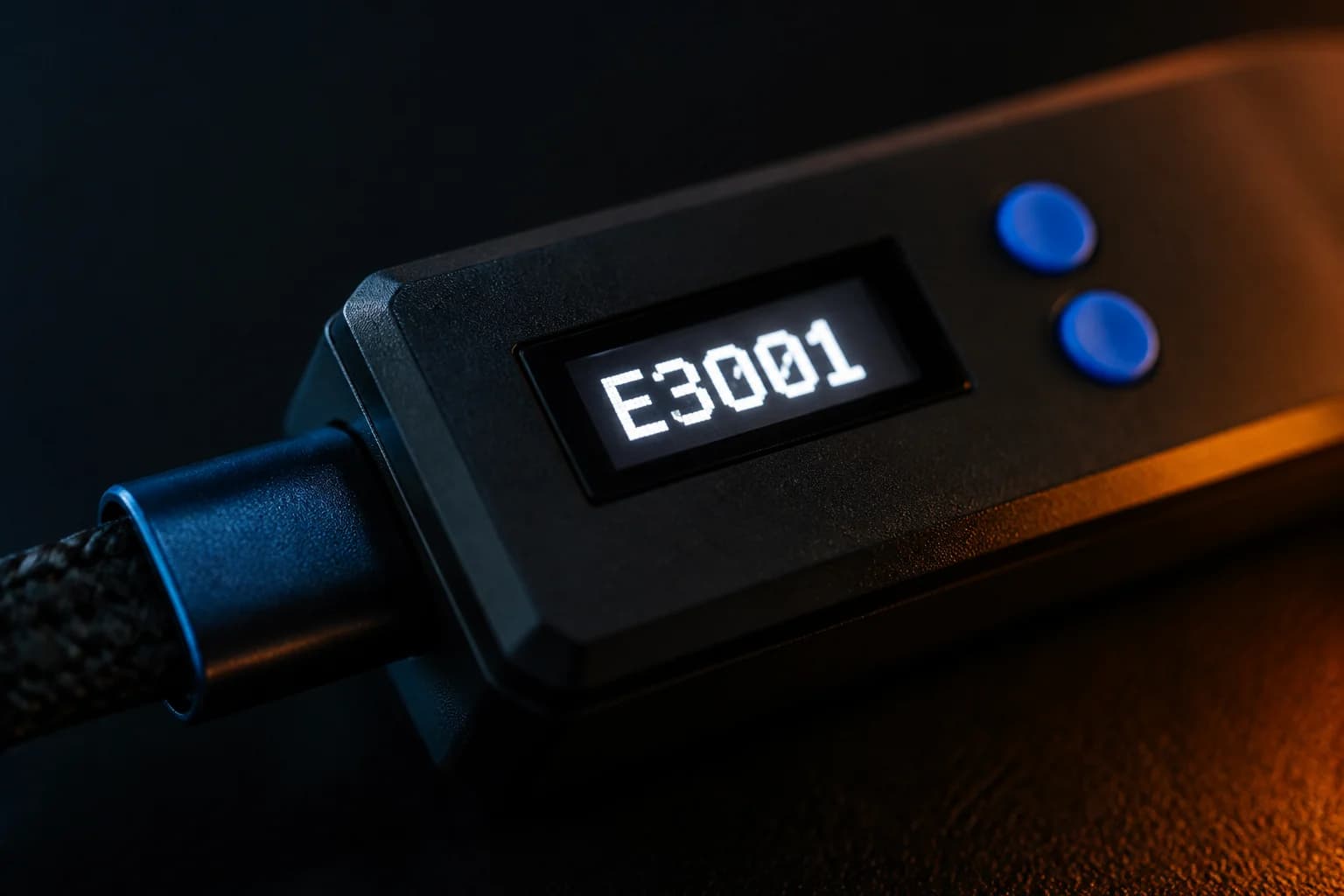
| E3001 | Firmware missing or corrupt | Reflash from bootloader mode |
| E3002 | Runtime crash | Unplug all cables for ten seconds; remove the last-added script if it recurs |
| Stack overflow / Bytecode underflow / Bytecode overflow | Script compiled for a different firmware | Recompile and reprogram the slot, or erase it |
| Custom text, menus or graphics | A GPC script drawing to the OLED | Read the script's instructions |
| Collective Minds gear-head logo after holding P1 + P2 | Hard reset succeeded | Run Factory Reset in Zen Studio's Device tab, then reprogram slots |
| Completely blank on a known-good cable | Hardware fault (official guidance) | Warranty ticket |
The last row deserves emphasis: a blank OLED with a working cable and port is the one case the official hardware page classes as a defective unit rather than something to troubleshoot.
What do the Zen LINK LED colours mean?
The Zen LINK module has a single multi-colour LED. Collective Minds documents it with a simple rule: colour says which subsystem is talking, rhythm says how it is going, and red always means something failed.
Normal startup
Plugging in produces a short sequence that takes a few seconds and ends in a steady state. If you see this sequence and it settles, the module is healthy.
Solid blue: setup mode
The module is powered and waiting to be configured, or it has returned to setup mode because it could not join Wi-Fi. If you have already set it up and see solid blue again, the Wi-Fi configuration needs to be redone in the Cronus ZenLink app.
Wi-Fi states
The module shows its Wi-Fi progress while joining a network. Once connected it stops indicating Wi-Fi and moves on. Failure to connect returns it to solid blue.
Magenta: PS5 Native Mode initialising
On Zen LINK V2, magenta belongs to the PS5 Native Mode handshake. A final green means Native Mode succeeded and the PS5 is connected through the Zen.
Firmware update
The module shows a distinct pattern during its own firmware update. As with the Zen, do not unplug it until the pattern ends.
Red, quick blips: retryable failure
Something went wrong during PS5 Native Mode initialisation. The official page says the light clears itself after about ten seconds and you can try again. Check the PS5 setting Communication Method → Use USB Cable first, since without it the PS5 cannot connect at all.
Red, long blinks: stopped
The device has halted. These never clear on their own. Unplug the Zen LINK and the Zen for ten seconds and reconnect. If it recurs, note the number of blinks between pauses and contact support.
Dark: no power
Try another USB port on the Zen or another cable to the Zen's top port. A controller charging on another front port can starve the module.
How do I read a blink pattern?
The official page asks for three details when reporting an unknown state: the colour, whether it blinks fast or slow, and how many blinks come before the pause. Count one group, watch the rhythm, and write it down before power cycling. The same count can mean different things at different speeds.
Which one is the problem: Zen or Zen LINK?
If the Zen's OLED shows a normal slot and the Zen LINK LED is red, the problem is network or PS5 side, covered in the PS5 setup guide. If the OLED shows an E-code, fix the Zen first; the module cannot work through a crashed Zen. If both look healthy and the PS5 still ignores input, check the console's controller settings and the DualSense Edge profile.
Can a script change what I see?
Yes. GPC scripts can draw text and shapes on the 128 × 64 pixel OLED and can set controller LEDs and the DualShock 4 lightbar. GamePacks use this for their menus. If your OLED shows something unfamiliar right after programming a slot, it is probably the script's own interface. The OLED menu guide explains the standard GamePack layout.
Frequently asked questions
My Zen shows no coloured light during play. Is that normal?
What does a controller lightbar colour mean through the Zen?
The Zen LINK LED is dark. What does that mean?
Where is the complete list of Zen LINK patterns?
Sources
Every link was live when this guide was last updated.
- 01Zen LINK status light (official guide)guide.cronuszen.com
- 02Zen LINK troubleshooting (official guide)guide.cronuszen.com
- 03Troubleshooting and hard reset (official guide)guide.cronuszen.com
- 04Hardware errors, E3001 and E3002 (official guide)guide.cronus.support
- 05Step 2, update firmware and bootloader mode (official guide)guide.cronuszen.com
This guide is independent and unofficial; product names belong to their owners. Found an error? Use the contact page and we will correct it and note the change.
Related guides
TroubleshootingCronus Zen troubleshooting: the 15 most common problems and fixes5 min read GPC ScriptingGPC feedback: drawing on the Cronus Zen OLED and using controller LEDs and rumble3 min readTroubleshootingHeadsets and chat audio through the Cronus Zen: what works on Xbox, PS5 and Switch4 min read