How to hard reset and factory reset a Cronus Zen
The official two-part reset: the P1 + P2 hardware hard reset with its red-green-blue LED confirmation, then Factory Reset in Zen Studio's Device tab. What is erased, what to back up first, and what to do if the reset fails.
- Updated
Quick answer
With nothing connected, hold both P1 and P2 beside the OLED, plug the CONSOLE/PC port into a console or PC, and keep holding for four seconds until the RGB LEDs flash and the Collective Minds logo appears. Then open Zen Studio, go to the Device tab and click Factory Reset. Back up scripts first; the reset erases every slot.
When should I reset the Zen?
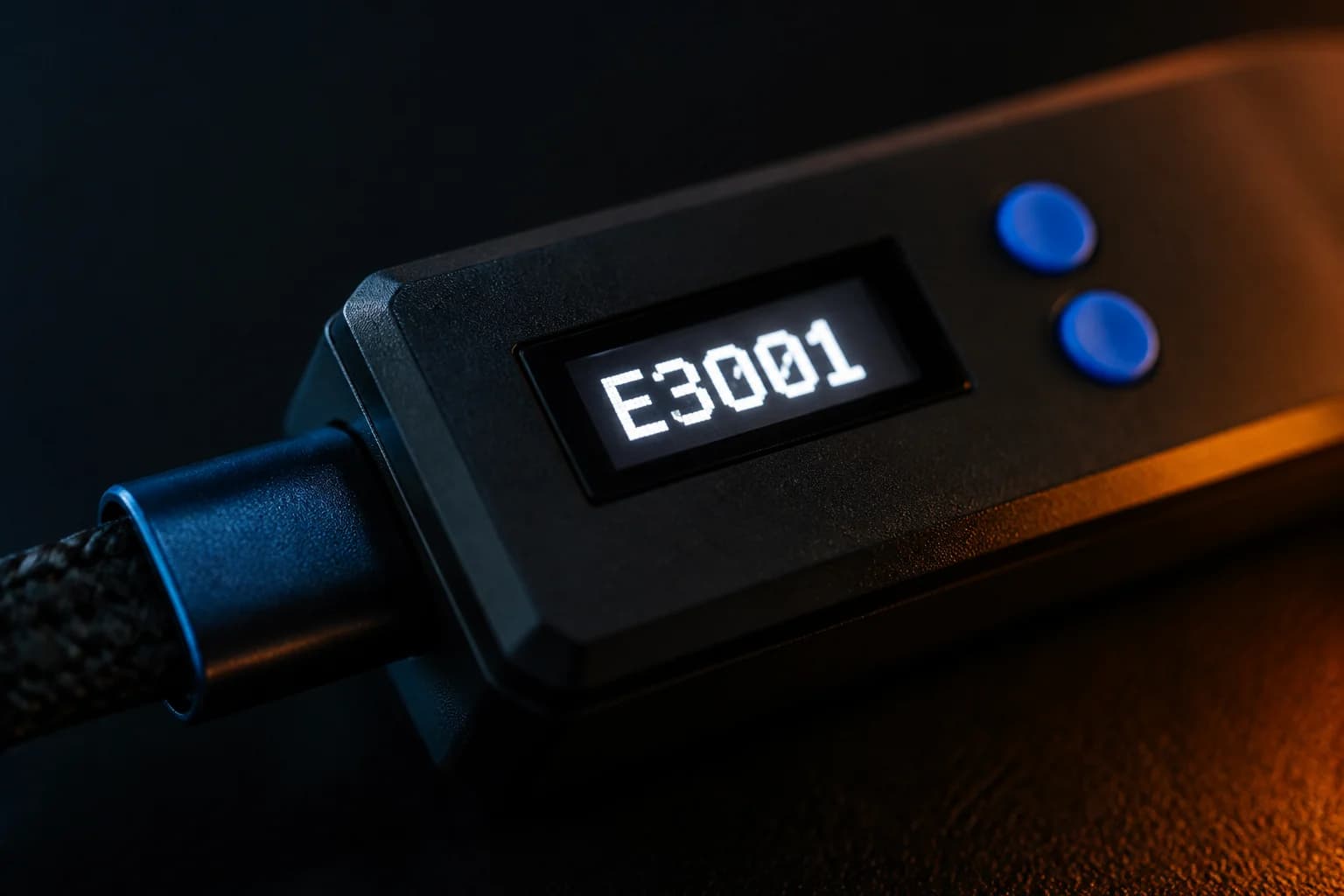
Collective Minds recommends a hard reset when the Zen freezes, behaves abnormally, shows error codes such as E3002, or refuses to be detected after a failed programming run. It is also the sensible first step before selling a unit or after a firmware update goes wrong and the device seems confused about what is in its slots.
It is not a fix for a cable, a port or an under-powered hub. If the symptom is intermittent disconnects, read laptops, hubs and power first.
What gets erased?
Everything the device stores:
- All eight memory slots: scripts, GamePacks and their configuration, Remapper profiles.
- Device settings such as output protocol, PS Remote Play mode and Remote Slot Change.
- Bluetooth pairings.
Firmware is not erased. The Zen boots normally afterwards, just empty.
What should I back up first?
- Scripts. The official guide warns that scripts cannot be pulled back off the device. Your
.gpcsource files on the PC are the backup. - M&K profiles. Export
.zmkfiles from the Mouse & Keyboard panel. - GamePack settings. Save configurations from Zen Studio Live before wiping. You can reload the pack itself from the library at any time.
A folder per game on your PC makes rebuilding the slots a five-minute job; see slot management.
Step 1: the hardware hard reset
- Disconnect everything. No controller, no console, no PC, no Zen LINK. The Zen must start powered off.
- Hold P1 and P2. These are the two large blue buttons either side of the OLED. Press both and do not let go.
- Plug in the CONSOLE/PC port. Still holding the buttons, connect the top port to a console or a PC with a data cable. Either power source is fine.
- Keep holding for at least four seconds. Watch the RGB LEDs. They flash red, then green, then blue in sequence.
- Release when the logo appears. The Collective Minds gear-head logo on the OLED confirms the hard reset took.
If the LEDs flash but the logo does not appear, repeat once. If nothing happens at all, see "What if it fails?" below.
Step 2: Factory Reset in Zen Studio
- Connect the Zen's PROG port to the PC.
- Open Zen Studio. In Legacy, go to the Device tab; in Live, open the device panel.
- Click Factory Reset in the bottom-right and confirm. The Zen reboots to its default state.
- If Zen Studio does not see the device afterwards, click Find Device.
The Device tab also offers Erase Memory Slots, which clears the eight slots while leaving other settings alone, and Reset Device, which simply reboots. Use the lighter tool when you only want a clean slate of slots.
Step 3: after the reset
- Update firmware. Open Zen Studio Live and run the firmware updater if it prompts you. If the device is not detected, enter bootloader mode with the blue reset button underneath; see how to update firmware.
- Re-pair Bluetooth controllers. Tap P2 and put each controller into pairing mode.
- Reprogram slots from your backed-up files.
- Reapply device settings such as output protocol or PS Remote Play mode for Zen LINK on PS5.
- Test with a GamePack in slot 1 before loading your own scripts. If the GamePack works and your script does not, the script is the problem.
What if it fails?
The official hard-reset page is direct about this: if the OLED stays blank or corrupt, the RGB LEDs do not respond, or the device flatly refuses to reset, it has probably developed a fault. Before concluding that:
- Try a different data cable and a different host port.
- Try powering from a console instead of a PC, or the reverse.
- Make sure no front-port device is connected during the reset.
Then use the warranty. Collective Minds states 90 days to one year for purchases from cronus.shop depending on the bundle, and typically 30 days from third-party retailers, with a replacement or refund within 30 days of purchase. See warranty and returns.
Is a reset ever harmful?
No. It is a supported procedure and the device is designed to be reset repeatedly. The only cost is the time to rebuild slots, which is why the backups matter more than the reset itself.
Frequently asked questions
Does a hard reset delete my scripts?
Do I need to do both parts?
The LEDs never flash and the logo never appears.
Will I need to update firmware afterwards?
Sources
Every link was live when this guide was last updated.
This guide is independent and unofficial; product names belong to their owners. Found an error? Use the contact page and we will correct it and note the change.