Cronus Zen slot management: using all 8 memory slots well
How the Cronus Zen's eight memory slots work, how to program, switch, rename and clear them in Zen Studio Live and Legacy, the button shortcut to change slot in-game, and a sensible layout for a multi-game library.
- Updated
Quick answer
The Cronus Zen stores up to eight compiled programs, one per memory slot, and runs whichever slot is selected. You fill slots from the Programmer in Zen Studio, switch slots in-game with the P1 and P2 buttons or from the controller with Remote Slot Change, and the OLED shows the active number. Keep slot 1 as a clean passthrough.
What is a slot?
A slot is a numbered storage location on the Zen holding one compiled program: a script, a GamePack with its configuration, or a Remapper profile. There are eight. The Zen executes only the active slot, shown as a number on the OLED, and passes input straight through when no slot is active or the selected slot is empty.
The eight-slot limit is fixed in hardware, so a library of a dozen games means choosing. Fortunately, switching slots is quick and needs no PC.
How do I program a slot?
Zen Studio Live
- Connect PROG to the PC and open Zen Studio Live in Chrome or Edge.
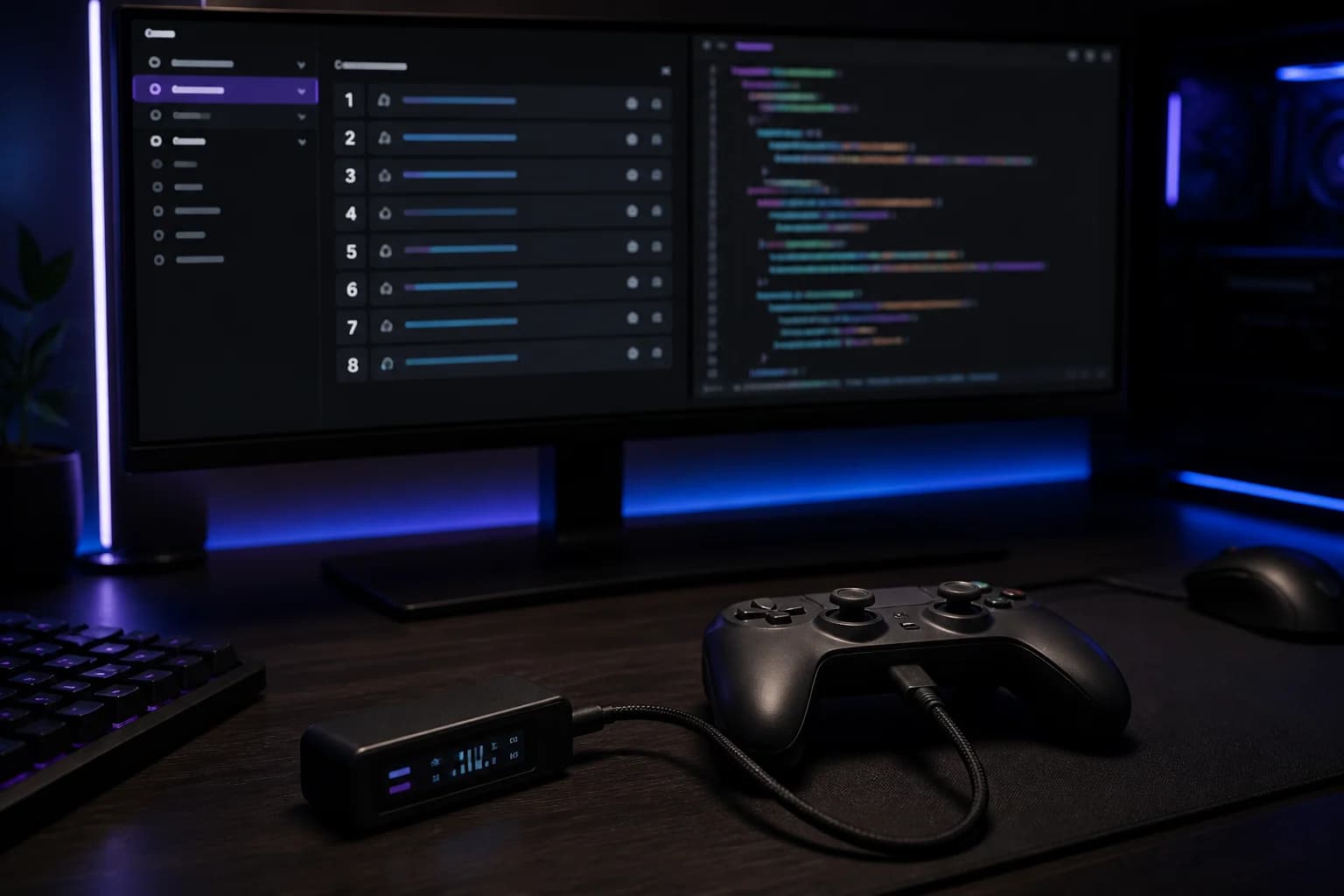
- Open the Programmer panel. Eight rows show what each slot holds.
- Drag a script, GamePack or profile onto a slot, or click the slot and choose from the list.
- Set any configuration the GamePack exposes.
- Click Program to write the slot. The OLED shows progress.
Zen Studio Legacy
The Programmer tab shows the same eight slots. Drag a .gpc file from the file browser or a GamePack from the library into a slot, click Program Device, and wait for the OLED to confirm.
Both tools let you clear a slot, and both show the slot name and the type of content. Legacy's Device tab also has Erase Memory Slots, which clears all eight without touching other settings, and Zen Flash, which shows how much flash memory your scripts and GamePacks occupy.
How do I change slot while playing?
The P1 and P2 buttons beside the OLED step through the slots on the device itself. Zen Studio Legacy's Device tab also has a Remote Slot Change option that lets you switch memory slots from the connected controller; the official page notes that the button combination varies by controller type, so check the combination shown for yours when you enable it. The OLED updates to the new number and the change is immediate.
The OLED confirms which slot is running at all times. See using the OLED menu for what else the display tells you.
How should I organise eight slots?
A layout many owners settle on:
| Slot | Contents | Why |
|---|---|---|
| 1 | Empty or passthrough | Guaranteed clean controller |
| 2 | Remapper profile for your main game | Button swaps without a script |
| 3 | GamePack for your main game | Official, tuned, updated |
| 4 | Your own GPC script in progress | Testing ground |
| 5 | Mouse and keyboard profile companion | Pairs with M&K settings |
| 6 | Second game | Rotation |
| 7 | Third game | Rotation |
| 8 | Accessibility or crossover profile | Rarely changed |
The specifics do not matter. The principles do: keep one clean slot, keep a test slot away from the ones you rely on, and put the profiles you switch between most often next to each other so a slot change reaches them quickly.
How do I rename a slot?
Slot names come from the file name of the script you loaded or from the GamePack's name. For your own scripts, give the .gpc file a descriptive name before loading it, since that is what the Programmer displays. The OLED shows the slot number during play, not the name, so a written note of which number holds which game saves guessing.
What are the pitfalls?
- Programming while the console is connected. It works, but if the Zen loses power mid-write you can get a corrupt slot. Clear and reprogram if the OLED shows an error.
- Forgetting the active slot. A script left running from a previous session can look like a hardware fault. Check the OLED number first when the controller behaves oddly.
- Reusing a slot for a different game. Configuration for the previous GamePack is discarded. Save configurations in Live before overwriting.
- Assuming a slot updates itself. GamePack updates published by Collective Minds do not reach the device until you reprogram the slot.
Can I back up slots?
There is no "download from device" feature. Your backup is the source: .gpc files, saved GamePack configurations and .zmk profiles on the PC. Keep a folder per game and you can rebuild all eight slots in a few minutes after a factory reset or on a replacement unit.
Does slot content survive a firmware update?
Usually, but do not rely on it. Firmware updates rewrite the device's operating code, not the slot memory, and slots normally reappear unchanged afterwards. Two exceptions matter. A failed or interrupted flash can leave slots unreadable, and some firmware releases change the compiler output enough that Collective Minds recommends reprogramming scripts compiled under older firmware. The practical rule: after every update, check the OLED shows your slot names, and if anything looks wrong, reprogram from your backup folder rather than trying to rescue what is on the device. The firmware update guide covers the sequence.
Frequently asked questions
Can I run two slots at once?
Does changing slot need a PC?
What happens if a slot is empty?
Are slots kept through a firmware update?
Sources
Every link was live when this guide was last updated.
This guide is independent and unofficial; product names belong to their owners. Found an error? Use the contact page and we will correct it and note the change.