Cronus Zen not detected by Zen Studio: cables, ports and drivers
Why Zen Studio Live or Legacy cannot see your Cronus Zen and how to fix it: data cables, PROG vs top port, WebUSB permissions, Windows drivers, power and a stuck device.
- Updated
Quick answer
When Zen Studio cannot see the Cronus Zen, the cause is almost always a charge-only USB cable, the wrong port for the task, an under-powered USB port, or the browser lacking WebUSB access. Swap to a cable from the box, use PROG for programming or bootloader mode for firmware, try a rear USB port, and re-grant access.
What does "not detected" look like?
It shows up as one of a few messages depending on the tool:
- Zen Studio Live: Connect Device opens the browser's WebUSB chooser and the list is empty, or the device appears but the connection fails.
- Zen Studio Legacy: the status bar stays on "Device Disconnected" or shows "Device Not Responding".
- Firmware tools: "No Devices Found".
- Windows: a "USB Device Not Recognized" balloon.
All of them share the same short list of causes. Work down it in order.
Is the cable carrying data?
This is the first thing to rule out, because it is the most common and the least obvious. A large share of USB-C cables sold for charging phones have no data wires. Plugged into the Zen they light the OLED perfectly, which makes them look fine, and then nothing ever appears in Zen Studio.
Use the braided cables that shipped with the Zen. If you have lost them, test a candidate cable with a phone or camera that you know transfers files. Do not trust a cable because it charges.
Is the right port connected?
| Task | Port on the Zen | What the OLED shows |
|---|---|---|
| Programming slots, compiling, GamePacks | PROG (bottom) | Normal slot screen |
| Firmware update or recovery | Top CONSOLE/PC port with blue button held on plug-in | "Zen Bootloader" |
| Playing | Top CONSOLE/PC port, no button | Normal slot screen |
Connecting the top port to a PC without holding the button makes the Zen behave as a controller. Windows will happily register an Xbox pad and Zen Studio will see nothing. Conversely, Zen Studio Live's Update Device will report no devices if you are on PROG.
Is the USB port supplying enough power?
The Zen powers itself and anything plugged into its front ports from the host. Front-panel desktop ports, unpowered hubs, many laptops and a Switch in handheld mode can fall short. The official firmware error page recommends a powered hub or a different port for exactly this reason. Symptoms that point to power: the OLED flickers or restarts when you plug in a controller, or detection works with nothing in A1–A3 but fails once a controller is connected.
Does the browser have access (Zen Studio Live)?
WebUSB requires a Chromium browser: Chrome, Edge or Opera. Safari and Firefox do not implement it, and iOS browsers cannot. Check:
- You are using Chrome or Edge on Windows, macOS, Linux or ChromeOS.
- No other tab or program has the Zen open. Close Zen Studio Legacy and any other Zen Studio Live tab.
- If you previously blocked the permission, click the lock icon in the address bar, find USB devices, and reset it.
- Unplug and reconnect the Zen after changing anything, then click Connect Device again.
On Linux, WebUSB may need a udev rule granting your user access to the device; that is outside Collective Minds' support but well documented for WebUSB generally.
Are the drivers installed (Zen Studio Legacy)?
Legacy installs its USB drivers with the application. If Windows shows an unknown device in Device Manager while the Zen is on PROG:
- Download the current Zen Studio Legacy from the official downloads page and run the installer again, accepting the driver installation.
- Reboot the PC.
- Reconnect the Zen on PROG.
The official Zen Studio error page also lists a case where an old Zen Studio version refuses to connect; updating to 1.6.1 Build 82 resolves it.
Is the Zen itself in a bad state?
If the OLED shows an error code or is frozen, Zen Studio cannot talk to it regardless of cable or port.
- E3002 or a frozen screen: unplug every cable for ten seconds, then reconnect PROG only.
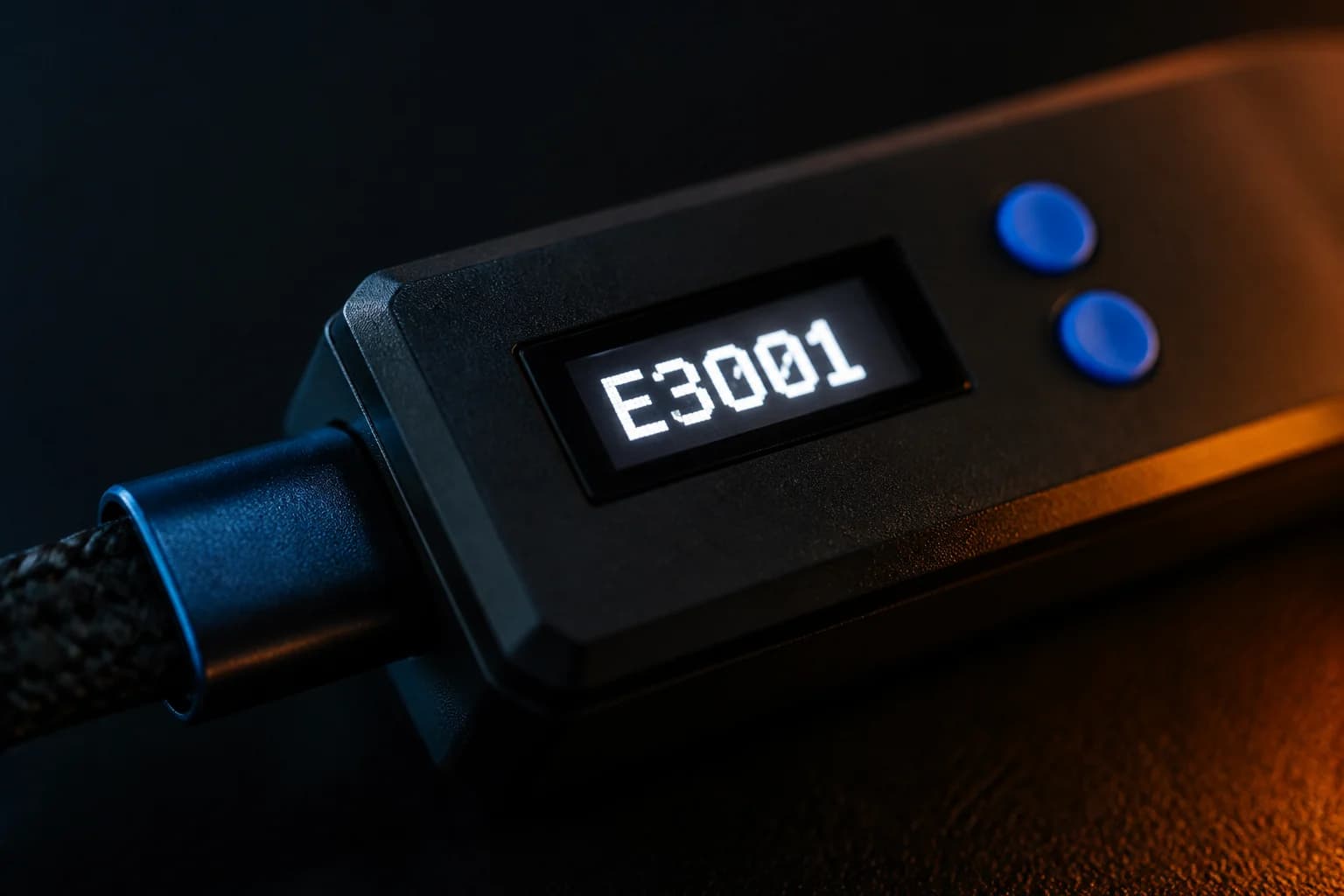
- E3001 or "Zen Bootloader" stuck on screen: the firmware is missing; use the firmware update guide to reflash from the top port.
- Blank OLED on a known-good cable and port: the official guide treats this as a hardware fault. Contact the helpdesk.
A hard reset clears most stuck states without a computer.
A checklist to run in two minutes
- Cable from the box, or a cable proven to carry data.
- PROG port for programming; top port plus blue button for firmware.
- Rear motherboard port or powered hub.
- Chrome or Edge, no other program holding the device.
- Unplug ten seconds, reconnect, Connect Device.
- If the OLED shows an error, fix that first.
When to stop and ask for help
If a cable that works on another device, a powered port and a fresh browser profile still produce nothing, and the OLED is either blank or shows an error you cannot clear, it is time for the official helpdesk. Include the OLED text, the port you used and your operating system; those three details cover most of what support asks first.
Frequently asked questions
Which port should be connected for Zen Studio to detect the Zen?
The WebUSB prompt shows no devices. What now?
Do I need drivers for Zen Studio Live?
My Zen shows E3002 and Zen Studio cannot see it. Which do I fix first?
Sources
Every link was live when this guide was last updated.
- 01Firmware errors, including No Devices Found (official guide)guide.cronus.support
- 02Zen Studio errors, including Device Disconnected (official guide)guide.cronus.support
- 03Step 1, start Zen Studio Live (official guide)guide.cronuszen.com
- 04Hardware errors, USB Device Not Recognized (official guide)guide.cronus.support
This guide is independent and unofficial; product names belong to their owners. Found an error? Use the contact page and we will correct it and note the change.