GamePack configuration: reset, save and untangle a pack that behaves oddly
How to fix a Cronus Zen GamePack whose MODs are stuck on, off or set to values you don't remember: reading the pack instructions, resetting to defaults, saving and reloading configurations, and knowing when the problem is the slot rather than the pack.
- Updated

Quick answer
When a GamePack misbehaves, the cause is almost always a MOD left enabled or a value changed on the OLED menu weeks ago. Open the pack's instructions in Zen Studio, use its reset option if present, or reprogram the slot with a fresh copy and a saved configuration. Erase Memory Slots in the Device tab is the last resort.
Why do GamePacks "go wrong" over time?
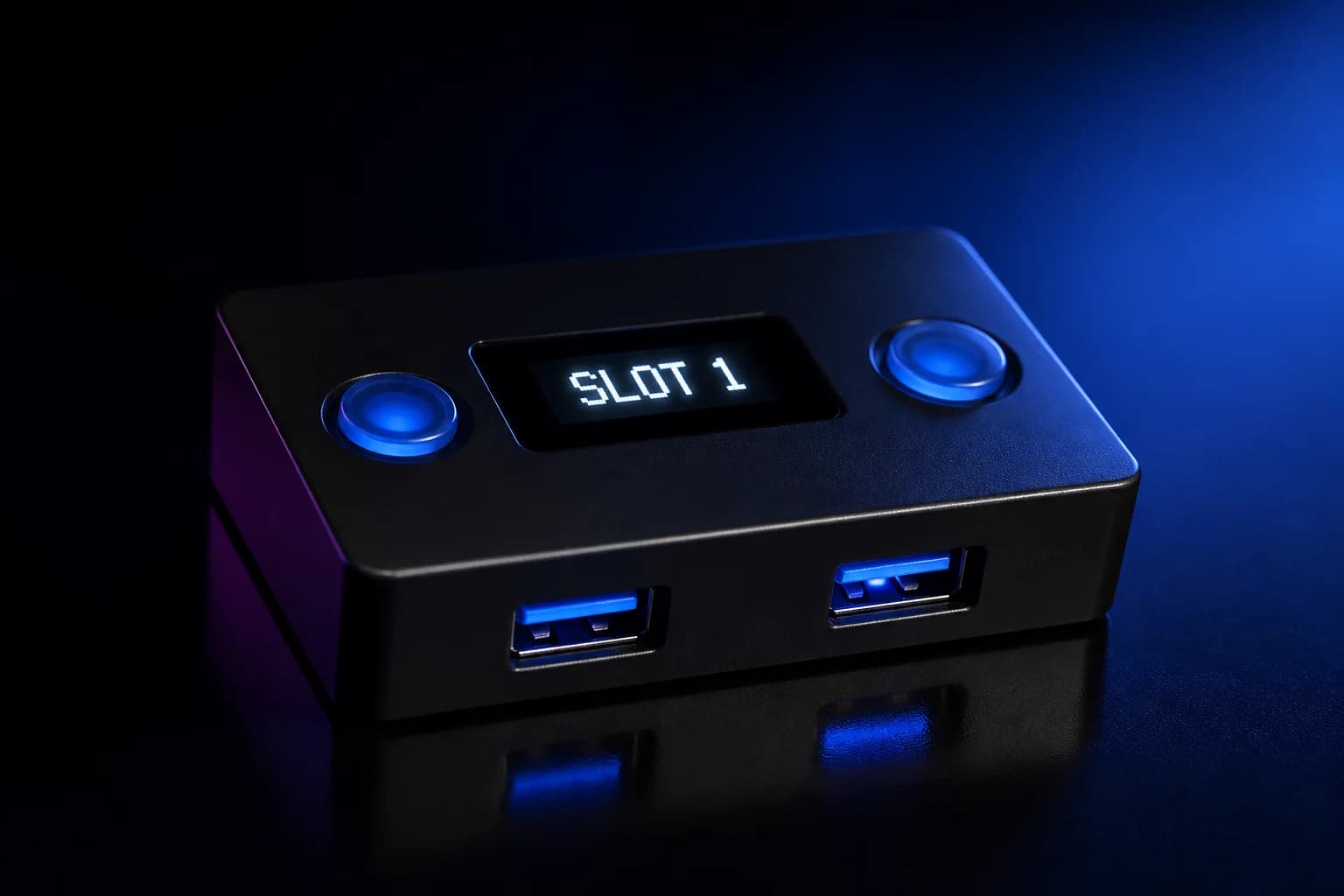
They rarely do. What changes is the configuration. A GamePack holds a dozen or more MODs, each with its own on/off state and values, all adjustable from the OLED menu with a controller. Over weeks of play it is easy to toggle something during a match, forget, and then find a month later that the left stick behaves oddly or a button does two things.
Because the pack stores those choices in the slot, they persist across sessions and even across firmware updates. The fix is to know what state the pack is in and put it back deliberately.
Step 1: read the instructions again
Every pack ships with instructions in Zen Studio. Select the pack in the Library and the panel shows the MOD list, the values each MOD accepts and the exact controller combination that opens the OLED menu. Print them or keep the tab open.
Read for three things:
- The menu combination. Packs differ, and a wrong guess can toggle a MOD you did not mean to touch.
- Dependencies. Many MODs assume a specific in-game control layout (for example "Tactical" or "Default"). If the game's settings changed, the pack's presses land on the wrong actions.
- Any reset option. Some packs include a "restore defaults" entry in their OLED menu.
Step 2: audit the OLED menu
With the console on and the pack's slot selected, open the menu using the documented combination and step through every MOD. Write down what is enabled and each value. This ten-minute exercise usually finds the culprit outright: a MOD enabled that you thought was off, or a value at its maximum.
If the pack has a reset-to-defaults entry, use it now and retest before doing anything else.
Step 3: reprogram the slot cleanly
If there is no reset option, or the menu behaves strangely, replace the slot contents:
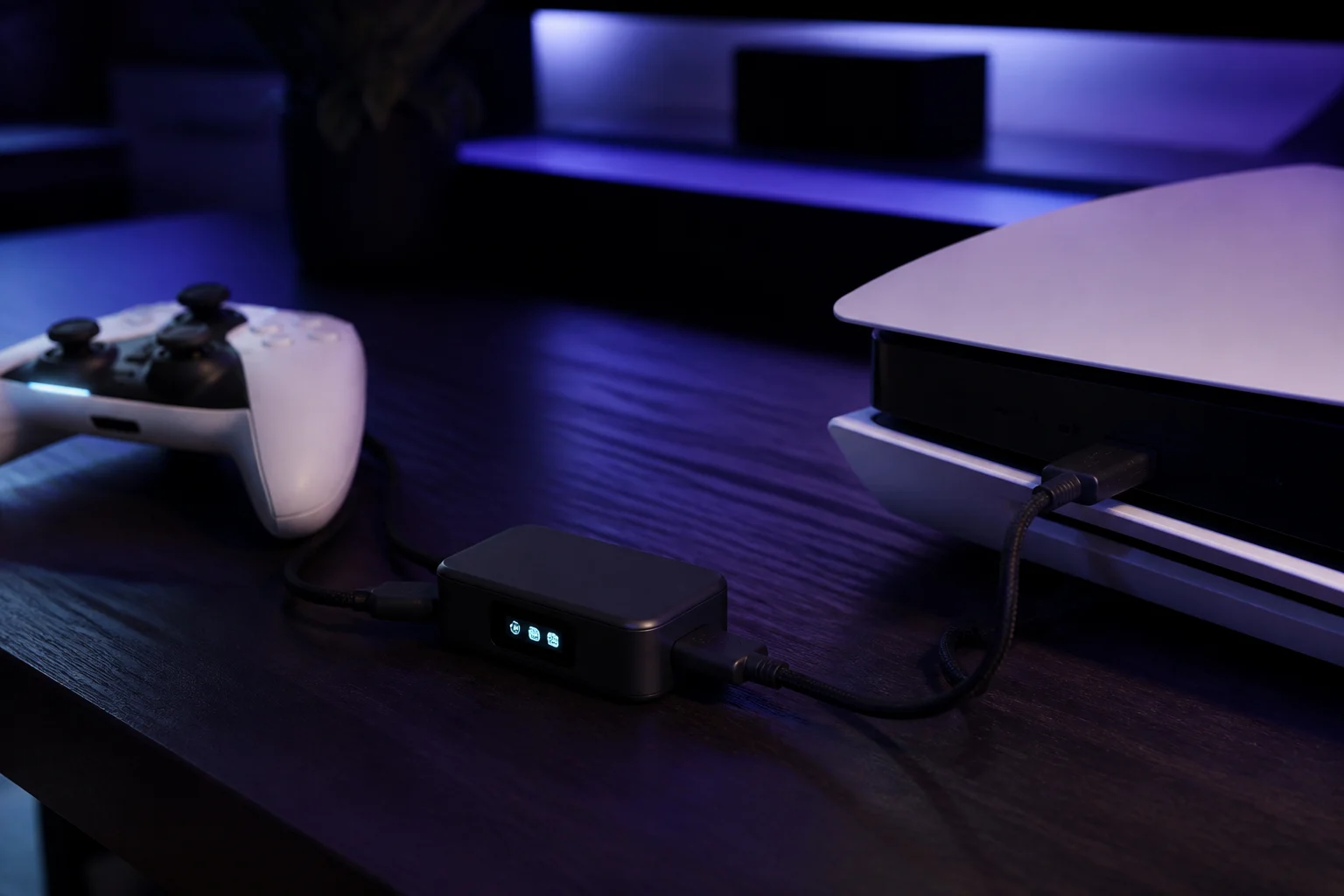
- Connect PROG to the PC and open Zen Studio.
- In the Programmer, note which slot holds the pack.
- Clear that slot.
- Drag the pack from the Library onto the slot again.
- If the GamePack Configuration Interface opens, either leave the defaults or load a configuration you saved previously.
- Program the device.
You now have a known state. The Legacy Device tab has an option to open the configuration interface automatically after drag and drop, which is convenient when you do this often.
Step 4: save configurations you like
The reason cleanup is painful is that people never save the working state. Once a pack is tuned:
- In the GamePack Configuration Interface, save the configuration to a file with a descriptive name, for example
game-controller-layout-tactical.cfg. - Keep a folder per game alongside your
.gpcscripts and.zmkprofiles. - Note the in-game settings the configuration assumes in the same folder.
Reprogramming after a problem then takes a minute, and a factory reset stops being scary.
When is it the slot, not the pack?
Three symptoms point away from configuration:
- Every slot misbehaves, including a plain Remapper profile or an empty slot. That is a controller, cable or power problem; see power and hubs.
- The OLED shows an error such as E3002 when the slot loads. The slot is corrupt. Clear it, reprogram, and if it recurs hard reset the device.
- The pack worked until a firmware update. Reprogram the slot so the pack is recompiled against the current firmware. The troubleshooting pillar covers "bytecode" errors that appear when a slot was compiled for a different firmware.
When should I erase all slots?
Zen Studio Legacy's Device tab has Erase Memory Slots, which wipes all eight while leaving device settings, Bluetooth pairings and output protocol alone. Use it when several slots are suspect and you have saved configurations to rebuild from. A full Factory Reset additionally resets device settings and is one step further.
Is there a difference between an updated pack and my copy?
Yes. Collective Minds and its community team update packs when games patch. Your slot holds the version you programmed. If a MOD stopped working after a game update, check the Library for a newer pack version and reprogram. There is no automatic update to the device.
A cleanup routine
- Read the pack instructions.
- Audit the OLED menu; reset to defaults if offered.
- Clear and reprogram the slot with a saved configuration.
- Confirm the game's own control settings match the pack's assumptions.
- Save the working configuration.
For what GamePacks are and how they differ from scripts, start with GamePacks explained.
Frequently asked questions
Where are a GamePack's instructions?
Does reprogramming a slot reset the pack's settings?
My pack says it is on but nothing happens in the game.
Can I have two configurations of the same pack?
Sources
Every link was live when this guide was last updated.
This guide is independent and unofficial; product names belong to their owners. Found an error? Use the contact page and we will correct it and note the change.