Zen Studio Live vs Zen Studio Legacy: which to use, and fixing WebUSB connection problems
When to use the browser-based Zen Studio Live and when the Windows Zen Studio Legacy is still needed, what each can do on current firmware, and a troubleshooting guide for Live's Connect Device prompt: Cronus Bridge missing, Cronus Zen missing in firmware mode, in-use-elsewhere and permission issues.
- Updated
Quick answer
Use Zen Studio Live for everything day to day: device settings, slots, GPC scripts, firmware and troubleshooting, in Chrome on Windows, macOS or Linux. Keep Zen Studio Legacy for Device Monitor and the MAX plugins; on firmware newer than 2.2.14 its Programmer and M&K tabs are disabled. If Live's device list is empty, suspect a charge-only cable.
What is the difference in one paragraph?
Zen Studio Live is a web application at zenstudio.collectivemindsstore.com. It uses WebUSB, so it runs in Chrome or another Chromium browser on Windows, macOS and Linux with nothing to install, and Collective Minds calls it "the hub for everything Cronus Zen". Zen Studio Legacy is the Windows desktop program that preceded it. Since July 2026 Legacy is maintained for the features Live does not yet have, and its Programmer and M&K tabs are disabled when the Zen runs firmware newer than 2.2.14.
What can each one do?
| Task | Live | Legacy |
|---|---|---|
| Update firmware | Yes | Yes (Tools → Firmware Update) |
| Program memory slots | Yes | Only on firmware 2.2.14 or older |
| Mouse and keyboard profiles | Yes | Only on firmware 2.2.14 or older |
| Write and compile GPC | Yes, 32-bit compiler | Yes, plus 16-bit legacy compiler option |
| Device settings, output protocol, PS Remote Play mode | Yes | Yes (Device tab) |
| Factory reset, erase slots, restart | Yes | Yes |
| Device Monitor (live I/O, CPU load, VM speed) | No | Yes |
| MAX Mapper, MAX Combo, MAX Rec plugins | No | Yes |
| Operational mode (Normal, Tournament, Wheel) | See Live device panel | Yes (Tools menu) |
| Runs on | Windows, macOS, Linux, ChromeOS | Windows 10/11 |
The direction is clear: Live is the primary tool and grows with every release, eight of which shipped between 2 July and 22 August 2026. Legacy is the companion for debugging and the plugins. Details of every panel are in the Zen Studio walkthrough.
Which should a new owner use?
Live. The official all-in-one setup guide is written entirely around it and does not ask you to install anything. Install Legacy later if you start writing scripts and want Device Monitor, or if you want MAX Mapper's visual remapping.
Connecting to Live: the normal case
- Plug a USB-C data cable into the Zen's PROG USB port and the computer.
- Open zenstudio.collectivemindsstore.com in Chrome.
- Click Connect Device. Chrome shows a small device picker.
- Choose Cronus Bridge and click Connect.
Chrome asks because web pages cannot reach hardware without explicit permission; you grant it once per browser profile.
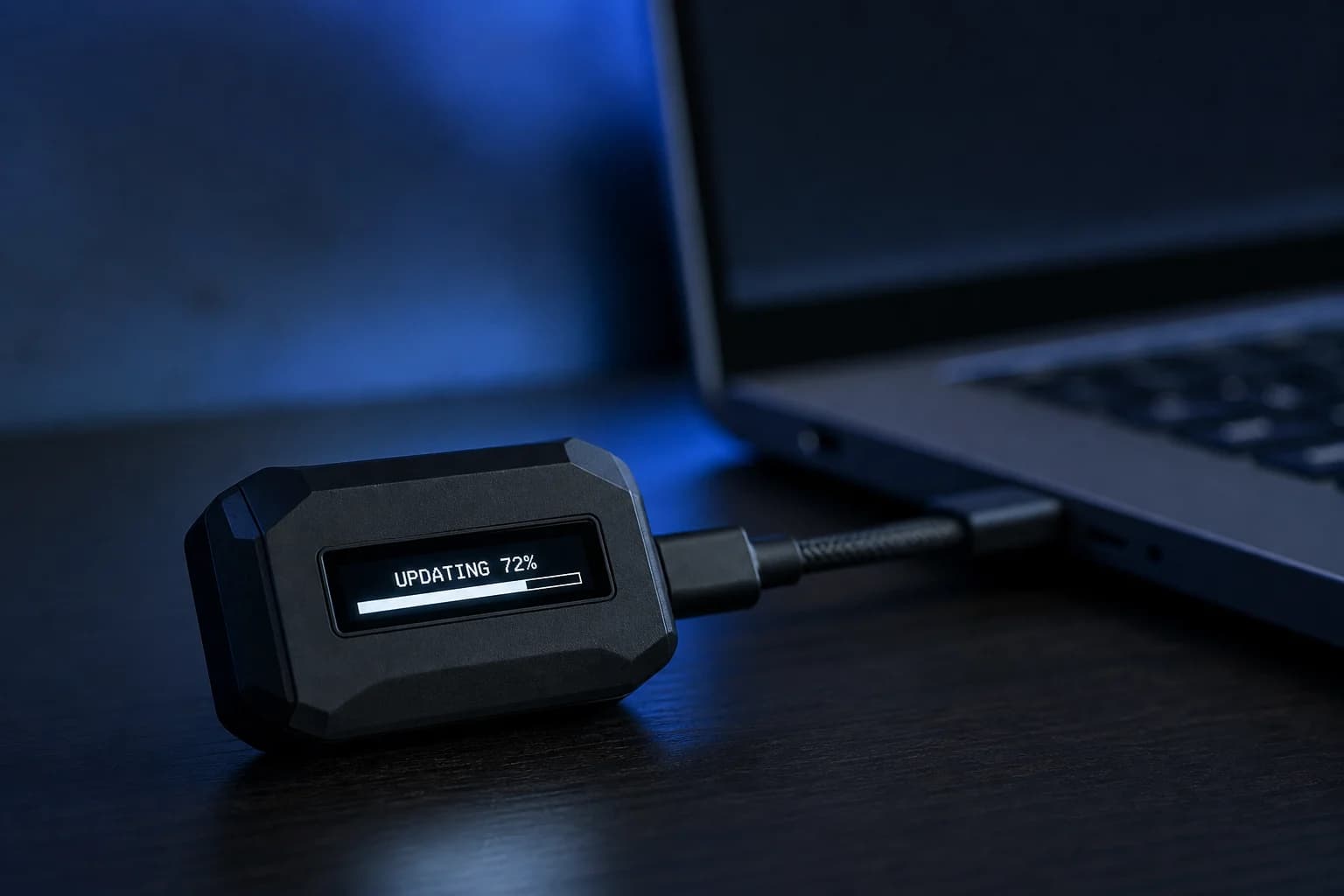
For a firmware update the device appears under a different name: unplug everything, hold the blue button on the back, plug the top port in while holding, and pick Cronus Zen from the list. Hold first, then plug; the order is what puts the Zen in bootloader mode. See how to update firmware.
Troubleshooting the Connect Device prompt
Collective Minds' quick reference lists the causes in order of likelihood, and experience agrees with it.
The list is empty or Cronus Bridge is missing
Almost always the cable. Many USB-C cables carry power only; the Zen lights up on one of those and stays invisible to the computer. Test the cable by connecting a phone to the computer with it: if the phone's files appear, it is a data cable. If the cable is good, unplug the Zen, plug it back in and click Connect Device again.
Second cause: wrong port. The console/top port puts the Zen into controller mode, so Live cannot see it. Use PROG for normal connection.
Cronus Zen is missing during a firmware update
The blue button was not held before plugging in. Unplug, hold the button, plug the top port in while still holding, and try again. The OLED should read "Zen Bootloader".
"Device Not Connected" in the status bar
A faulty or marginal cable, or a hub between the Zen and the computer. Connect directly with a different cable.
"In use elsewhere"
Another tab has the device, or Zen Studio Legacy is running. Only one program can hold a USB device at a time. Close the other, then reconnect. This explicit state arrived in Live 1.0.2.
Chrome never shows the picker
- Make sure you are on Chrome, Edge or another Chromium browser. Firefox and Safari do not support WebUSB. iOS browsers do not either.
- On Linux, WebUSB may need a udev rule granting your user access to the device; the symptom is a picker that shows the Zen but fails to connect. Search your distribution's documentation for WebUSB udev rules.
- Corporate or school machines may have WebUSB disabled by policy.
- Try an incognito window to rule out an extension.
Live loaded but looks stale
When a new Live version is available the app prompts you to reload rather than failing on old files, a behaviour added in 1.0.5. If the prompt does not appear and something misbehaves, reload the page.
Can I run Live and Legacy at the same time?
Installed, yes. Connected to the Zen simultaneously, no. Whichever has the connection blocks the other. A workable routine for scripters: write and program in Live, close the tab, open Legacy for Device Monitor to watch values, then close Legacy and return to Live.
What about macOS and Linux for Legacy?
Legacy is Windows-only, and Collective Minds does not support it under Boot Camp or virtual machines. The official requirements note that unofficial workarounds exist, but Live removed the need for most people. If you need Device Monitor on a Mac, a Windows machine is still required.
Summary
Start in Live. Keep a Windows PC with Legacy around only for Device Monitor and the plugins. When Live cannot see the Zen, change the cable before you change anything else. Version history for both tools is in firmware history.
Frequently asked questions
Which browsers work with Zen Studio Live?
What is Cronus Bridge?
Live says the device is in use elsewhere.
Do I still need Windows?
Sources
Every link was live when this guide was last updated.
- 01What is Zen Studio Live (official guide)guide.cronuszen.com
- 02Step 1, start Zen Studio Live, quick reference (official guide)guide.cronuszen.com
- 03All-in-one easy setup (official guide)guide.cronuszen.com
- 04Zen Studio Legacy overview (official guide)guide.cronuszen.com
- 05Changelog 2026, Zen Studio Live and Legacy releases (official guide)guide.cronuszen.com
This guide is independent and unofficial; product names belong to their owners. Found an error? Use the contact page and we will correct it and note the change.